Check the First Available Delivery Date
Use the Delivery Schedule Checker to simulate an order date and see the first available delivery date for a customer or product, without placing a real order.
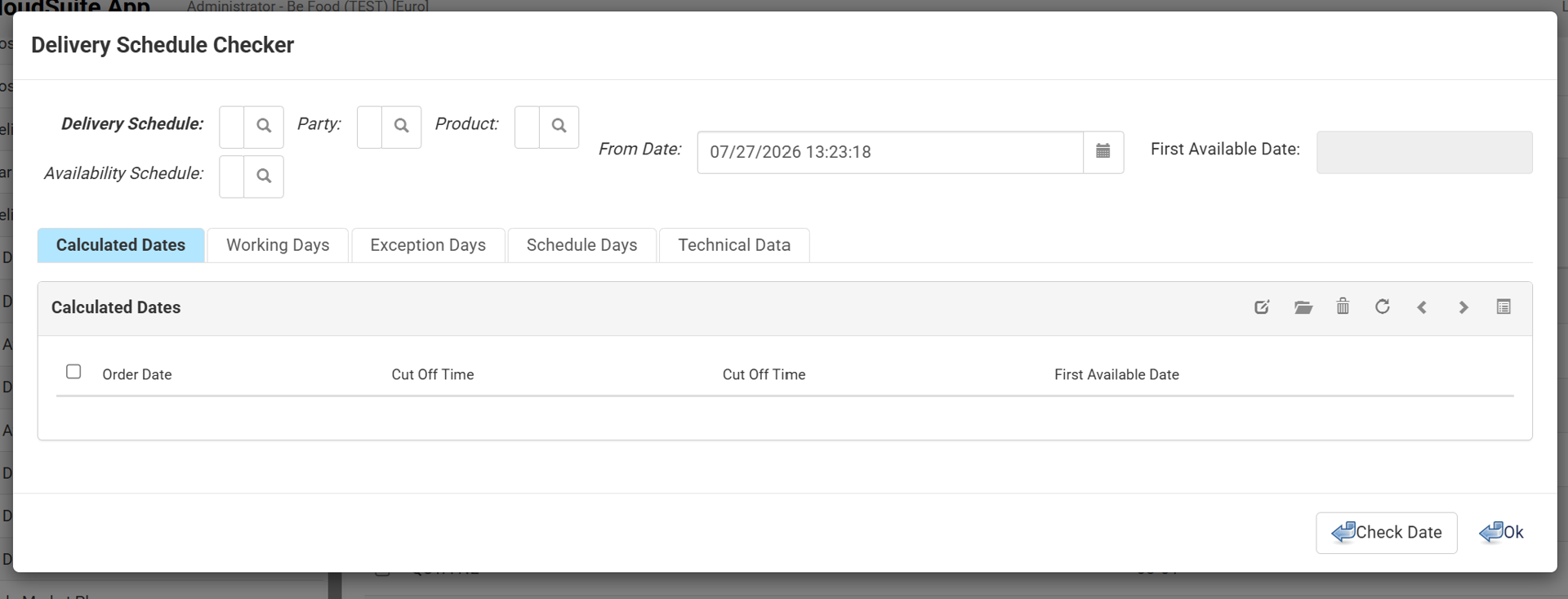
- In the CloudSuite App, go to Order Management > Configuration > Delivery Schedule Configuration > Delivery Schedule Checker. A pop-up window appears.
- Select a Party to use that customer's delivery schedule. The Delivery Schedule fills in automatically. You can also select a Delivery Schedule directly. A delivery schedule is required.
- (Optional) Select a Product to include its availability schedule. The Availability Schedule fills in automatically. You can also select an Availability Schedule directly.
- In From Date, set the order date and time you want to simulate.
- Click Check Date. The First Available Date shows the earliest delivery date.
- Open the tabs (Calculated Dates, Working Days, Exception Days, Schedule Days) to see which rules were applied.
- Click Ok to close the checker.