Take Over and Check out a Customer's Basket
As an Sales Center user with the appropriate role and permissions , you can check out an active basket for a customer on their behalf.
Prerequisites
- The Sales Center module is active for the webshop.
- You are set up as a Sales Center User
- Your Sales Center user role has the Can confirm overtaken baskets permission.
Open the Customers' Baskets
- Log in to the webshop of the customer.
- Go to My Account > Open baskets.
The page shows the open baskets of all eCommerce users linked to the selected customer account.
Open the basket
- Click the arrow next to the basket you want to open.
- A message shows that you are editing another user’s basket, including the user’s name and email address.
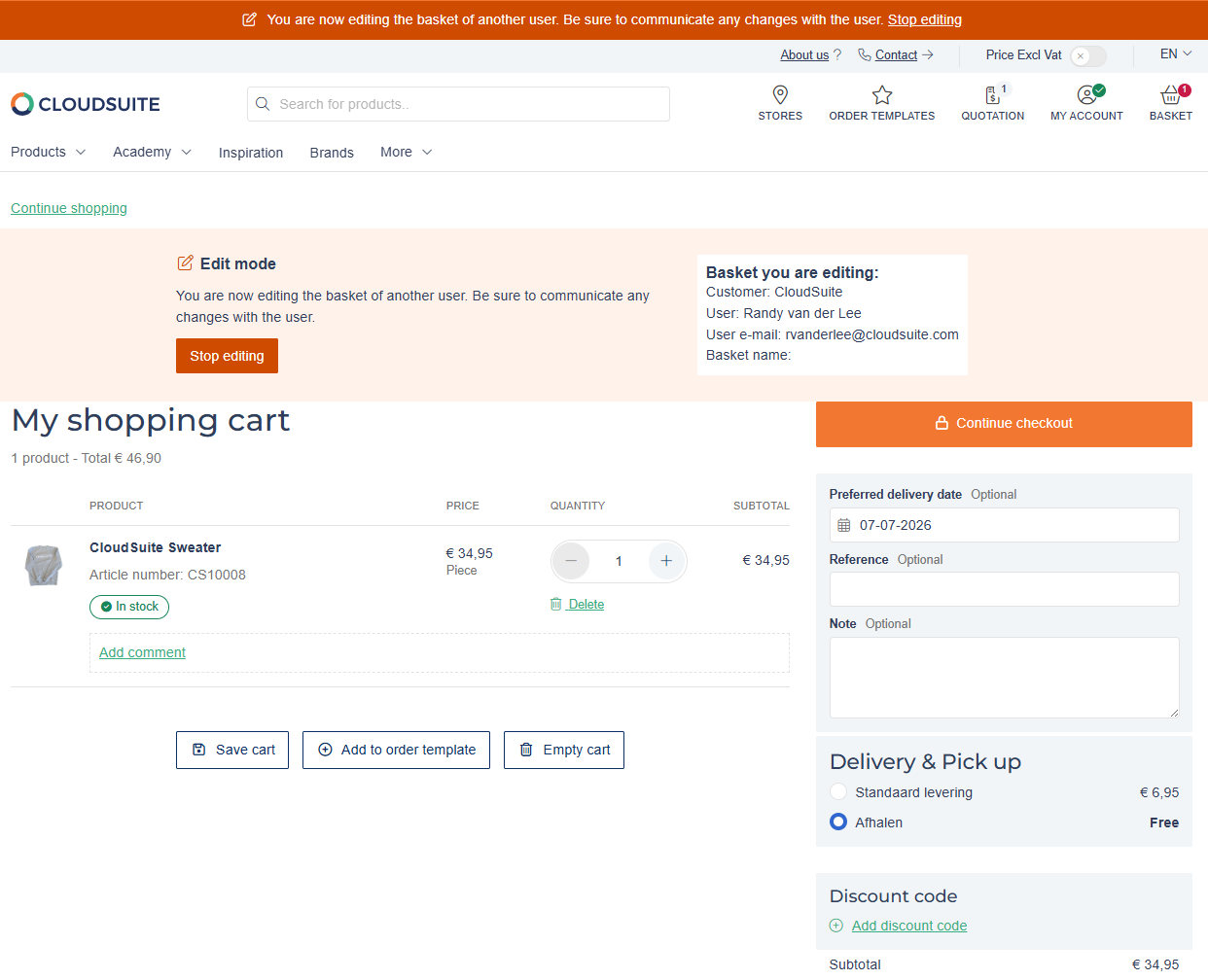
Edit the Basket
Make the required changes. You can:
- Change product quantities.
- Remove products.
- Add products.
Continue to Checkout
- When the basket is ready, click Continue checkout.
- Review Budget Statuses (If applicable)
Any budgets configured for the customer are applied automatically. If a blocking budget limit has been reached, a warning appears. As an authorized Sales Center user, you can choose to proceed with checkout.
If no budgets apply, no budget warning is shown.
Confirm the Order
- Review the order details on the checkout confirmation page.
- Click Confirm to place the order.
The order is saved under the customer’s account. The order also records which Sales Center user confirmed it.
You can only check out baskets for customers who buy on account. You cannot confirm baskets for customers who use online payment.