Speed Order
Speed order lets you add multiple products to the basket without having to browse the webshop.
Prerequisites
- You must be logged in to the webshop.
Speed order is available by default. If the <language_code>/speedorder page is unavailable because Speed order was disabled during your webshop's implementation, contact Customer Support.
Open the Speed Order page
Open the Speedorder page in one of the two following ways:
- In My Account, click Speed Order (the name of the menu item may differ if it was changed during the implementation of your webshop.
- In the browser address bar, enter your webshop domain followed by
/<language_code>/speedorder/. For example:https://www.example.com/en_US/speedorder/
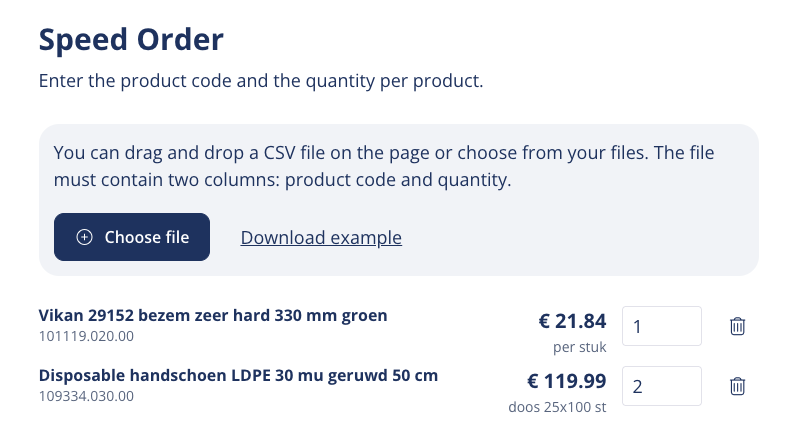
Add Products With a CSV File
-
Create a .csv file with two columns: the product code and quantity. The file can contain column headers.
nsr.1234, 25 -
Upload the .csv file in one of the following ways:
- Drag the file onto the upload area.
- Click Choose file and select the file.
-
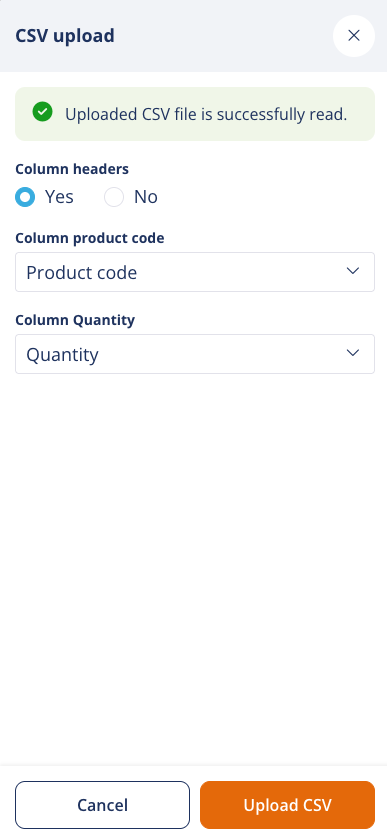
Under Column headers, select whether the first row of the file contains column headers:
- Yes
- No
-
Under the Column product code, select the column that contains the product codes.
-
Under Column Quantity, select the column that contains the quantities.
-
Click Upload CSV.
CSV validation
When you upload a CSV file, Speed Order validates the quantities before you add the products to the basket.
- Rows with a quantity of
0are ignored, when this setting is enabled. - If a quantity does not match the product's minimum order quantity or packaging unit, Speed Order adjusts it to an allowed quantity based on the closest match.
-
- Packaging Unit Adjustments: If the packaging unit is 10, an uploaded quantity of 14 is adjusted down to 10, while 16 is adjusted up to 20.
- Minimum Order Quantity: Any quantity below the minimum is automatically adjusted up to meet the minimum requirement.
Speed Order shows which rows were adjusted, so you can review the changes before continuing.
Add Products Manually
- Enter the Product Number (e.g. Product Code, OEM Number or EAN Code).
- Enter the quantity.
- Repeat these steps for each product you want to add.
- Click Order.
The products and quantities are added to the basket.