Set up and Use the Scan Center App
The CloudSuite Scan Center app lets you scan product barcodes with a mobile device and add the products to your shopping basket. Connect the app to your webshop before you start scanning products.
Prerequisites
- The CloudSuite Scan Center app is installed on a mobile device with a camera (Apple App Store (iOS) or Google Play Store (Android).
- Valid login credentials for the webshop.
- Access to the webshop QR code.
Connect Scan Center To Your Webshop
-
Open the CloudSuite Scan Center app.
-
Tap Connect a new shop.
-
If prompted, allow the app to use your device’s camera.
-
Scan the QR code for your webshop.
-
Enter your webshop login credentials.
-
Select Log in.
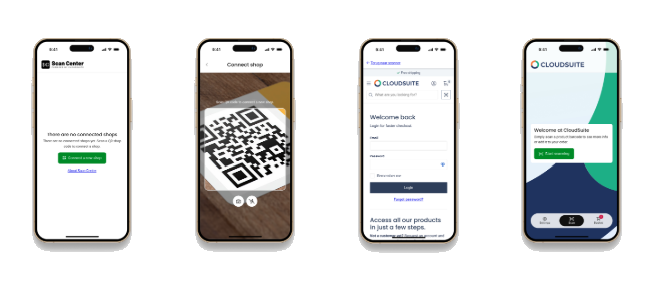
The app connects to your webshop. You can now scan products.
Scan Products
After you log in, you can begin adding items to your order.
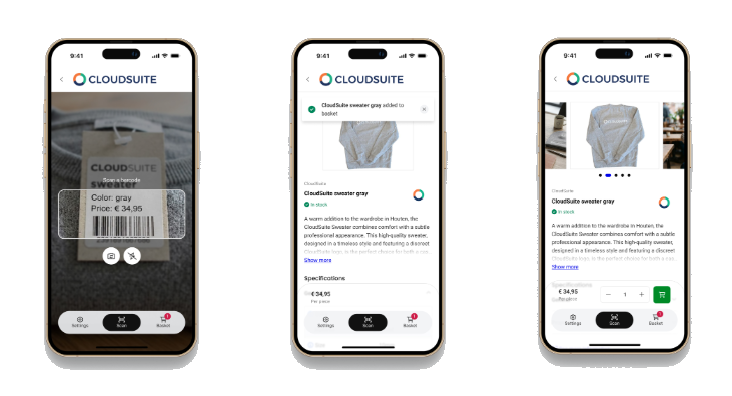
- Tap Start .
- Scan the product barcode.
- Continue according to the Add Products Directly to Basket setting:
- When Add Products Directly to Basket is enabled, the scanned product is added to your basket automatically.
The product details page opens without options to change the quantity or add the product to the basket. You can change the quantity later in the basket. - When Add Products Directly to Basket is disabled, the product details page opens without adding the product to your basket.
Change the quantity if necessary, then add the product to your basket.
- When Add Products Directly to Basket is enabled, the scanned product is added to your basket automatically.
You can configure this behavior in the Scan Center settings.
Review The Basket And Check Out
- Tap the Basket icon in the navigation bar.
- Review the products in your shopping basket.
- Change product quantiSties if necessary.
- Complete the webshop checkout.