Set up Customer-Specific Delivery Schedules and Cut-Off Time
Configure a custom delivery schedule to set different order deadlines (cut-off times) or delivery days for specific customer groups (for example, by location or route) and assign that schedule directly to a customer account.
Create a Custom Delivery Schedule
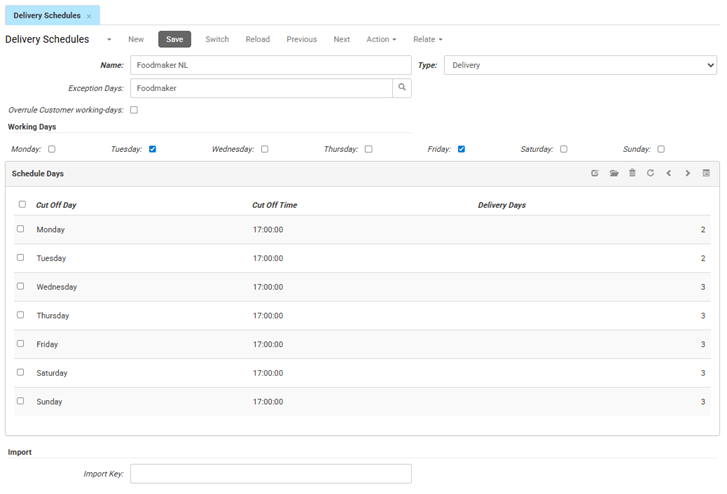
- Configuration > Delivery Schedules.
- Click New to create a new schedule.
- In the Name field, enter a name that identifies the target group or route (for example, North Region Route or Key Accounts).
- (Optional) In the Exception Days field, link an exception days calendar to apply exception days (such as public holidays or other schedule exceptions) to this schedule.
- Overrule Customer working-days:
- Leave empty to respect any Not Delivery Days configured on individual customer profiles.
- Check this to override individual customer restrictions and calculate timelines based solely on this schedule.
- Under Working Days, select the days of the week you deliver to this group of customers.
- In the Schedule Days table, complete the following for each working day:
- Cut Off Time: Enter the daily order deadline (e.g., 17:00:00 for a 5:00 PM cut-off).
- Delivery Days: Enter the transit lead time (in days) required for orders placed before that day’s cut-off time. (For instance, entering 2 means an order placed before 17:00:00 will take 2 transit days.)
- Click Save.
Example
A customer places an order on Monday before 17:00. With Delivery Days set to 2, and only Tuesday and Friday marked as working days, the system counts Tuesday as day 1 and Friday as day 2. The delivery date is Friday.
Link the Schedule to a Customer Account
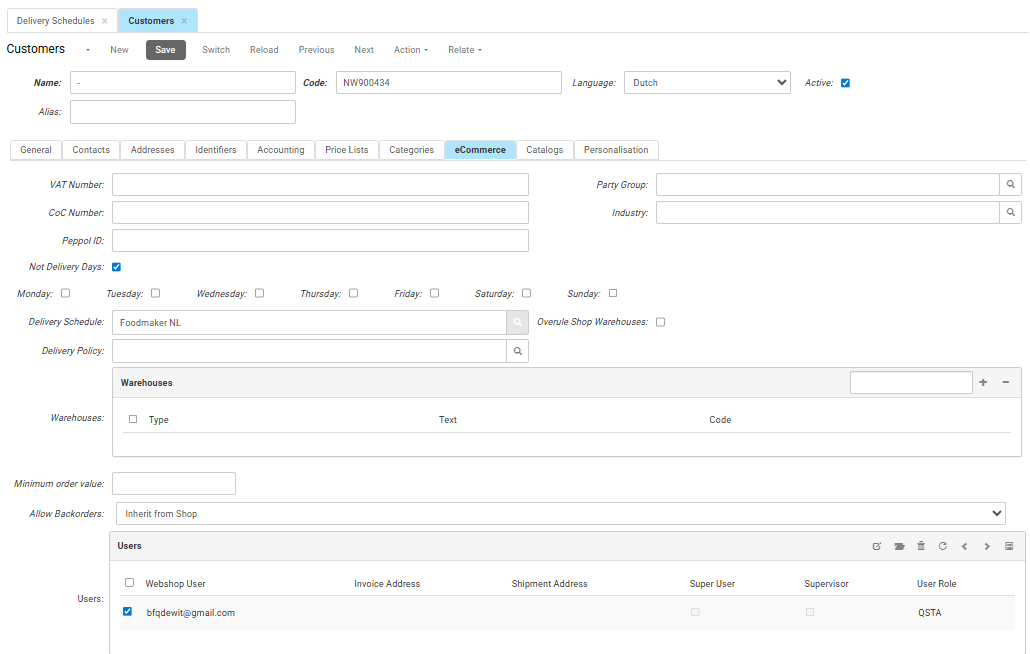
- In the CloudSuite App, go to the Customers > Customers screen and open the profile for a customer belonging to this target group.
- Go to the eCommerce tab.
- In the Delivery Schedule field, select the schedule you created.
Configure Customer-Specific Delivery Restrictions (Optional)
- On the same eCommerce tab, enable the Not Delivery Days option if you do not deliver on specific days.
- Select the days when delivery is not available.
- Note: If you enabled Overrule Customer working-days on the schedule, the system ignores these days.
- Click Save.