Set up a Sale Type substitution
Use a sale type substitution to give selected customers a different cost rule from the one linked to the webshop sale type.
Prerequisites
Before you start, make sure:
Create the substitution
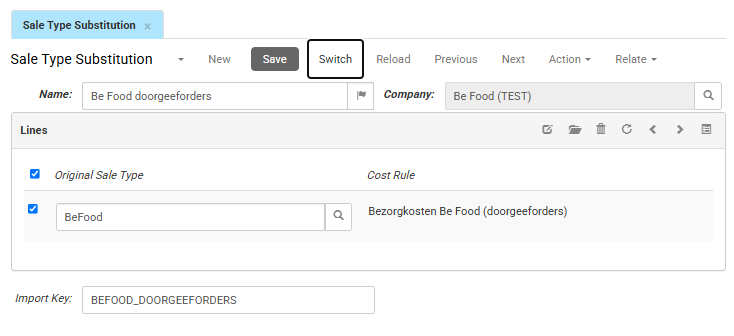
- Go to Order Management > Configuration > Sale Type Substitutions in the CloudSuite App.
- Click New.
- In the Name field, enter a name for the substitution. To add translations, click the flag icon.
- In the Company field, select the operating company the substitution belongs to. If your setup has only one company, this may be filled in for you.
- In the Import Key field, enter your import identifier. Leave this empty if you do not import the substitution from another system.
- Click Save.
Add the sale type mappings
- Open the substitution you created.
- Add a line.
- In the Original Sale Type field, select the sale type whose cost rule you want to replace.
- In the Cost Rule field, select the cost rule to use instead.
- To replace the cost rule for another sale type, add a line and repeat steps 3 and 4.
- Click Save.
Assign the substitution
A substitution applies only after you link it to a customer or a delivery address.
- Go to the customer or the delivery address that must use the substitution:
- For linking to a customer, go to Customer → Accounting.
- For linking to an address, go to Addresses → Additional Info.
- In the Sale Type Substitution Rule field, select the substitution you created.
- Click Save.
The substitution now applies to new orders for that customer when the order's sale type matches one of the substitution's lines. If you also set a substitution on a delivery address, the address substitution applies when the customer selects that address during checkout.
Check the result
The substitution applies to new orders for the customer when the order's sale type matches one of the substitution's lines.
To confirm that the substitution works:
- Create a test order for the customer you assigned the substitution to.
- Make sure the order uses the substitution cost rule instead of the sale type's standard cost rule. The additional order costs, surcharges, or discounts change accordingly.
- If you also set the substitution on a delivery address, select that address on the order and check that the costs update.