Product Variants
You can use variant configurations to group related products and display them as a single product in your webshop.
Go to PIM > Product Variants > Variant Settings to create and manage variant configurations. An overview appears listing all variant configurations. Double-click a configuration to open it, or click New to create one.
- The Name field defines the name of the variant configuration. This name is visible to webshop visitors and can be translated using the flag icon.
- Select Active to make the variant configuration available in the webshop. This is checked by default
. - When Overrule Product Name is checked, the name of the variant configuration is displayed on the Product Detail Page (PDP) and Product List Page (PLP) instead of the individual product name when variant products are displayed as a shared product.
- Combine Product Reviews determines how reviews are displayed for the variant products.
- Select Always to combine all reviews in one list.
- Select Never to show them separately.
- Choose Use Shop Settings (the default) to use the corresponding setting specified in the shop details.
Enable Filter Products to allow webshop visitors to filter variant products by attribute. on the product detail page. When this option is enabled, the Attributes tab becomes available.
Products
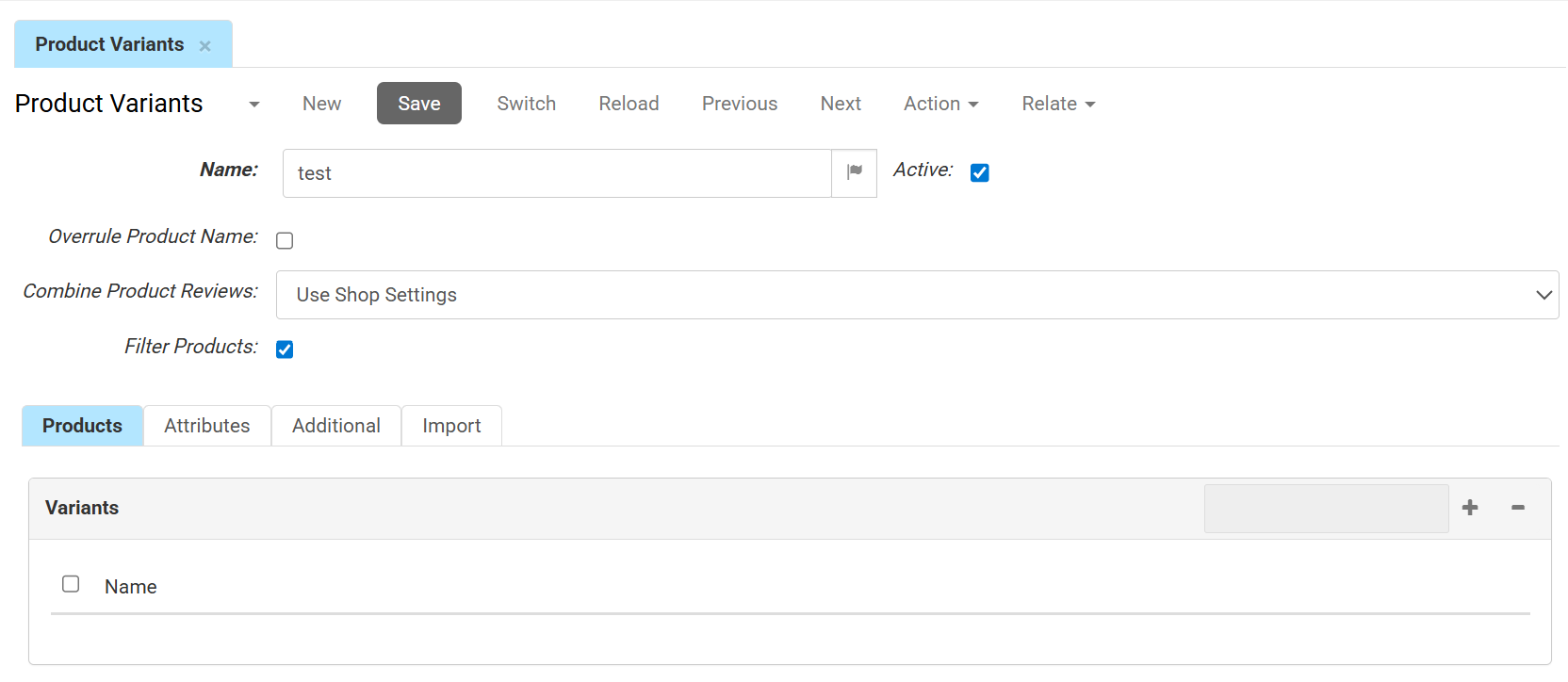
The Variant Products tab contains all products that belong to the variant configuration. Use the search field and the add or remove buttons to manage the products in the configuration.
For basic variant configurations, the Variance field can be used to display additional text below the variant selection on the PDP.
Attributes
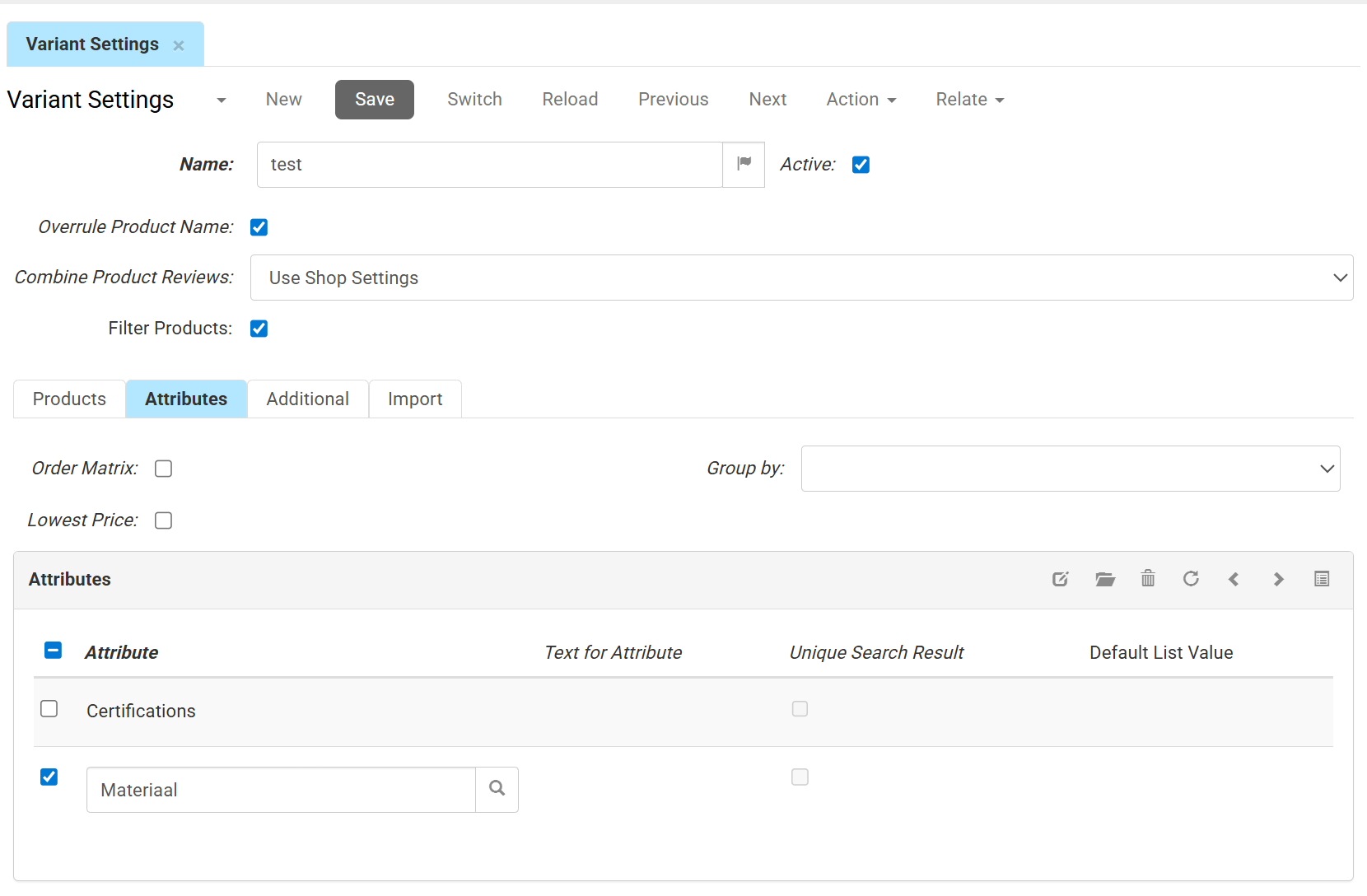
The Attributes tab is available when Filter Products is enabled. Here you can define how variants are selected and displayed.
- Check Order Matrix to display variant products in a grid on the product detail page (PDP) based on the first two attributes. This allows webshop visitors to order multiple variants at the same time.
- Check Lowest Price to display the lowest variant product price as the starting price on the product list page (PLP). The variant product with the lowest price is also used as the default product displayed in the product tile.
- Use Group by to determine how variant products are grouped on the PDP.
- When set to Attributes, webshop visitors select individual attribute values such as colour and size.
- When set to Variant, predefined attribute combinations are displayed.
The Attributes List section contains the attributes that can be used to distinguish variant products.
- Attribute displays the linked attribute.
- Text for Attribute overrides the attribute name displayed in the webshop.
- When using Group by attributes, optionally select Unique Search Result to limit the product variants that appear in the search result based on the attributes a customer selects.When only one variant product matches the selected combination, that product is displayed. Example: For a product with only two attributes, color ans size, if a customer chooses a color first, the webshop will only show the sizes available for that specific color. Once they choose both a color and a size, the system displays the one exact product they want.
- Enabling Unique Search Result limits which product variants appear in the search result based on the attributes a customer selects.When only one variant product matches the selected combination, that product is displayed.
- Default List Value preselects an attribute value when the PDP opens. This option is available only when Group by is set to Attributes, Unique Search Result is enabled, and a maximum of two attributes are used as filters.
Additional
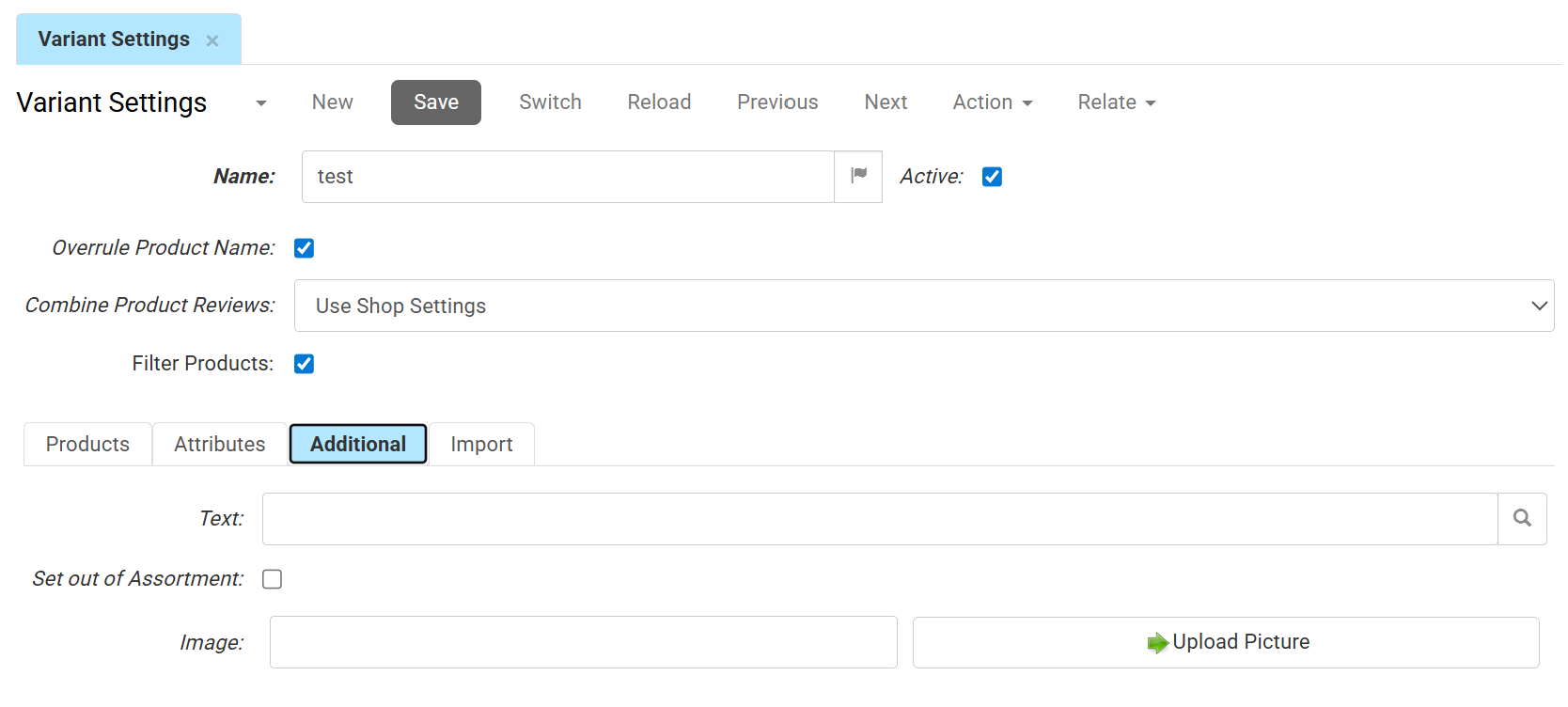
The Additional tab contains supplementary content for the variant configuration.
- Use Text to link a text block to the variant configuration. Click the search icon to select one.
- Enable Set out of Assortment to mark the entire variant configuration as unavailable.
- Use Image to upload an image for the variant configuration. Click Upload Picture to select one. The image can be displayed together with the variant configuration in the webshop.
Import
- The Origin identifies the source system, company or administration that supplied this record. In multi-administration or multi-entity setups, multiple origins may apply.
- The Import key is the unique identifier defined for your imports, used to match, retrieve, or update records