Template Products
Template products allow you to manage a group of variants (like different sizes or colors) from one central screen: the Template Product.
Data you set on the template, such as descriptions, attributes, and assets, is automatically synchronized to all linked variants (every night). You can also push changes to all variants immediately using the Process tab.
This feature is available only on request. To get access, contact your consultant or Customer Support.
To work with template products, in the CloudSuite App go to PIM > Product Variants > Template Products. An overview appears, listing all existing template products. Double-click a template product to open it.
Creating a new template product is only allowed for users with an admin account. When creating a new template product, only a limited number of fields is available. Click Save to display the additional tabs and options.
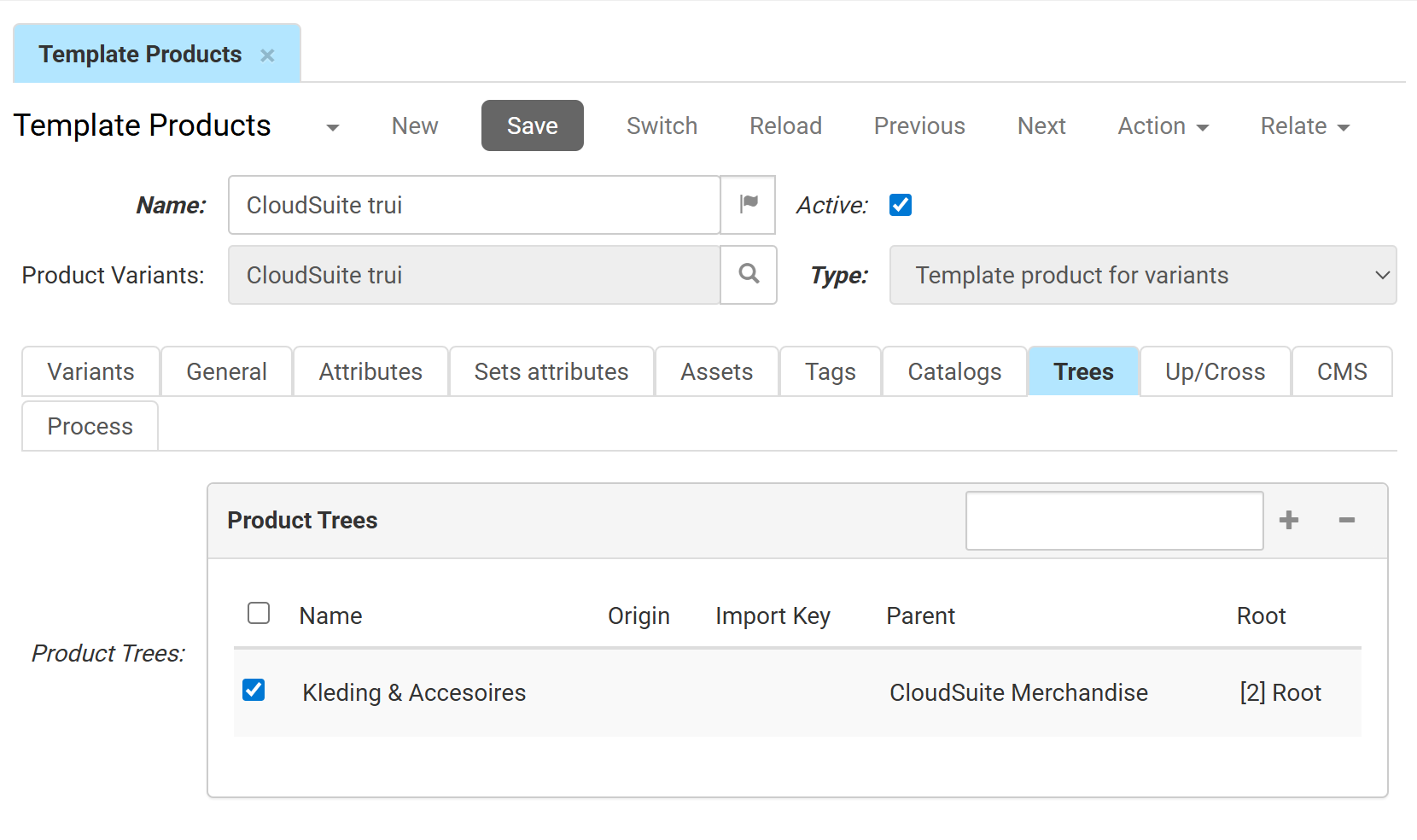
-
Enter the Name of the template product. This is used for internal identification and can be translated.
-
The template is Active only when the corresponding box is checked.
-
Select the Product Variants profile by clicking the search icon to define the variant structure for this template.
-
Choose the Type from the dropdown menu (e.g., "Template product for variants").
Variants
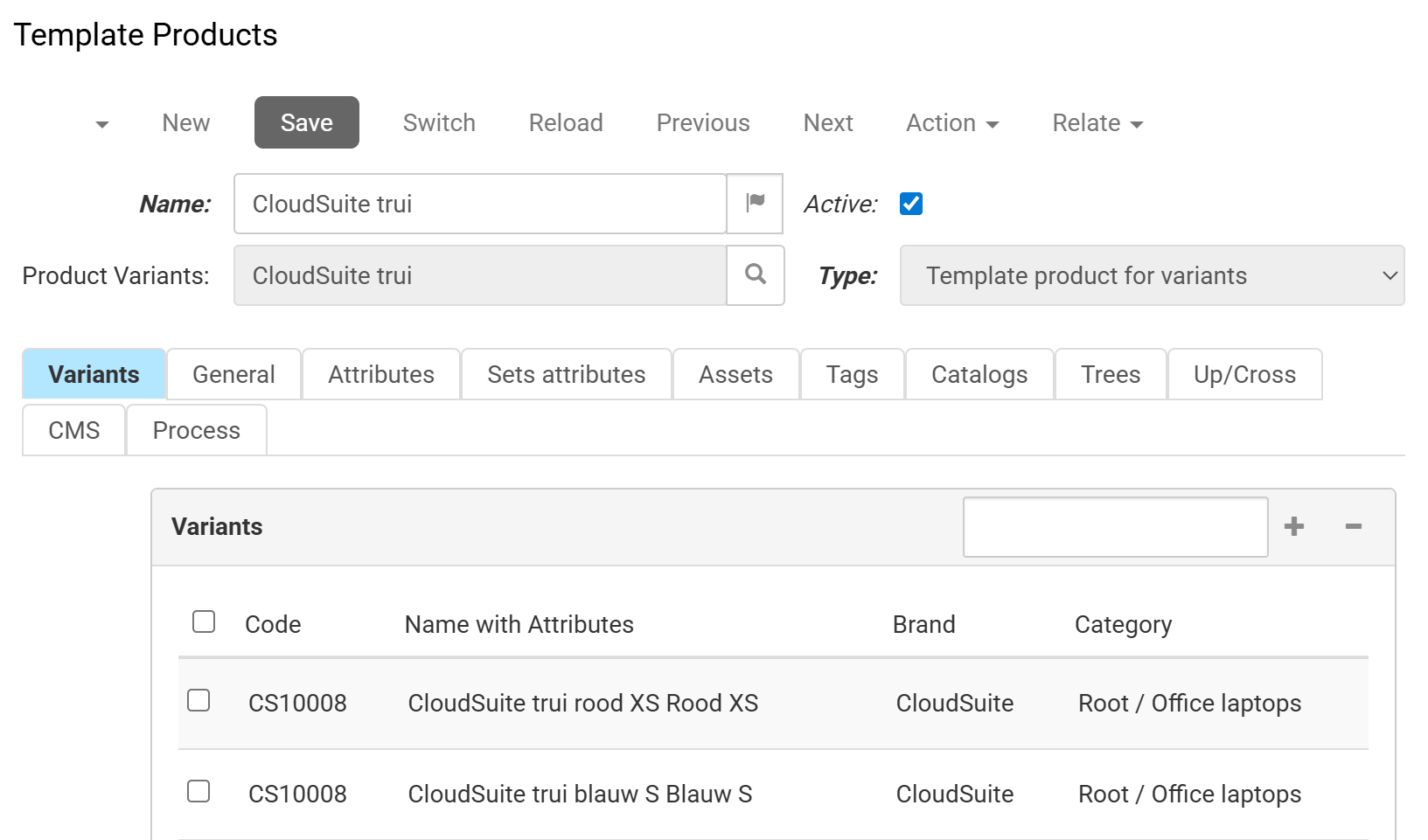
This tab lists all individual products (variants) currently linked to this template. or each variant, the table shows the Code, Name with Attributes, Brand, and Category.
General
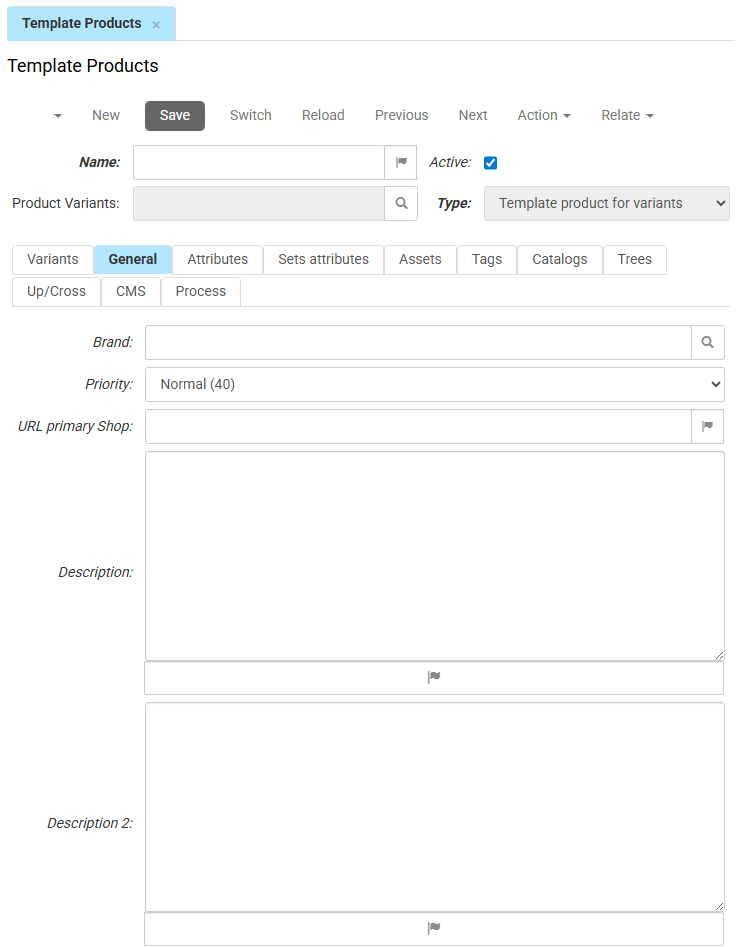
This tab contains the primary fields that will be shared across all variants.
- Select a Brand and set the Priority for search result ranking.
- Enter the URL primary Shop and a detailed Description. You can use Description 2 and 3 for additional content or SEO sections. These fields can be translated.
Attributes
In this tab, you manage the shared attribute values for the template, such as material or technical specifications.
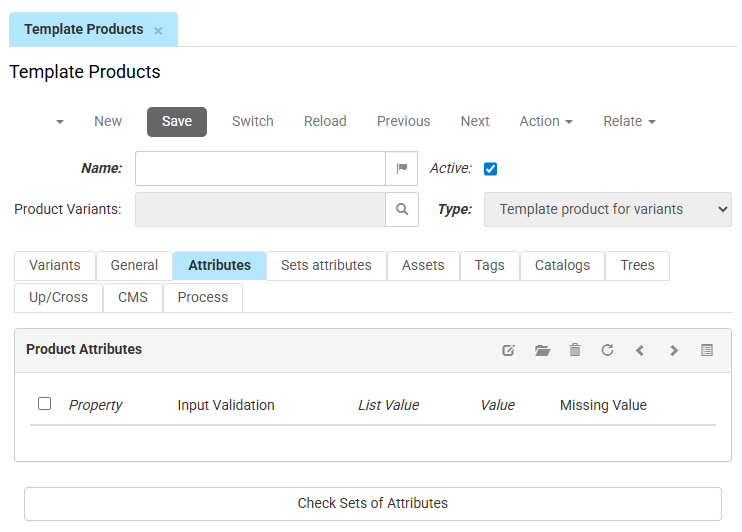
- Click Check Sets of Attributes to verify that the template contains all required fields from its linked attribute sets.
his tab is for shared attribute values only.
Attributes that are unique to each variant - such as color or size - must be set on the individual variant product. You can, however, add these attributes to the template without a value. This way, you only need to enter the value on each variant, not the attribute itself.
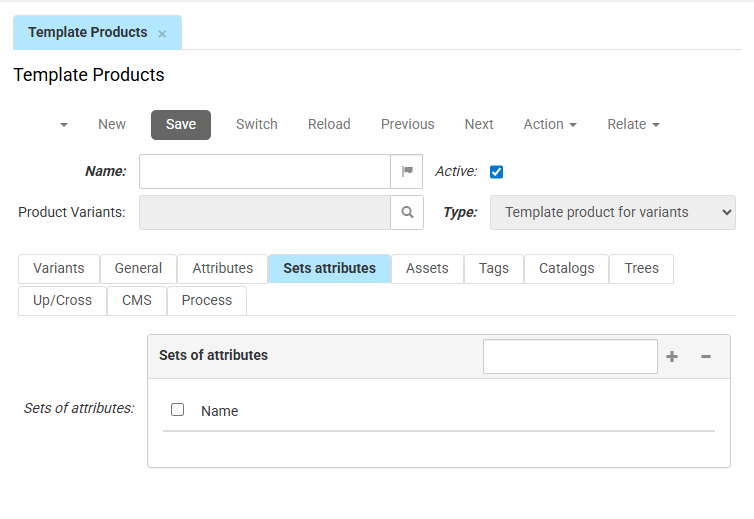
Sets of attributes
In this tab, you manage which attribute sets are assigned to the template. Linking a set here ensures that all variants have the same group of technical or marketing fields available.
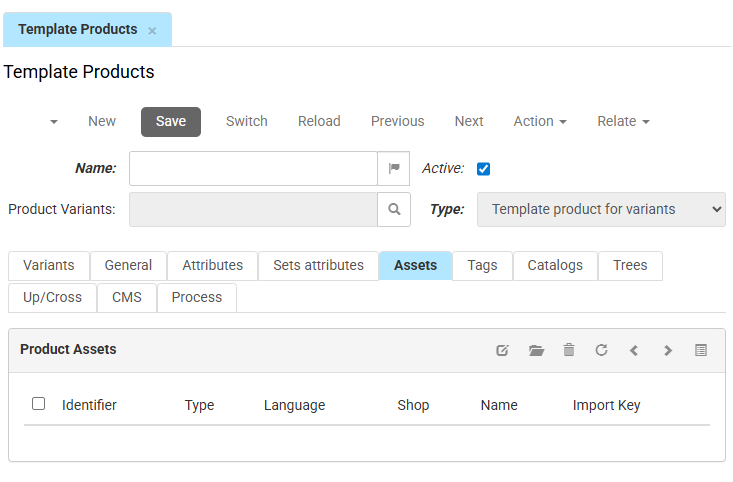
Assets
In this tab, you manage the images and documents linked to the template. You can upload an image that applies to all variants, or manage shared PDF manuals and videos.
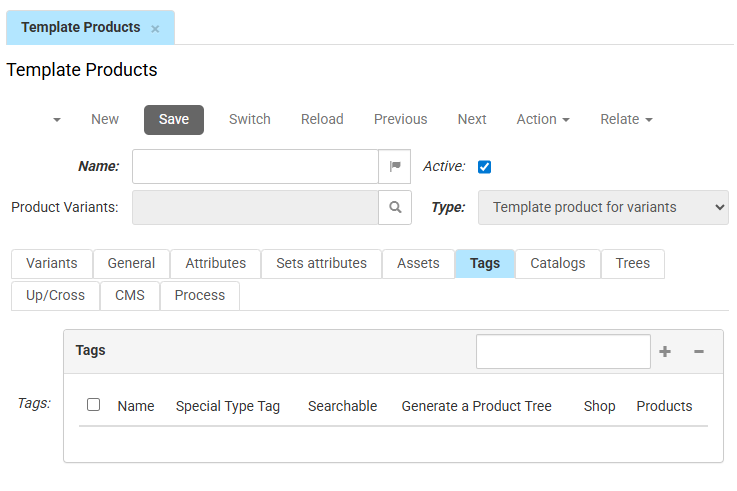
Tags
In this tab, you assign Tags to the template. Tags help you group products in the front-end or create dynamic collections.
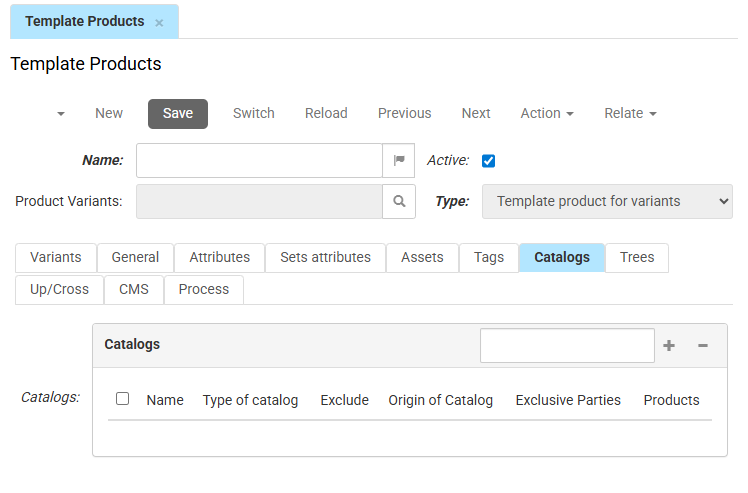
Catalogs
In this tab, you select which catalogs the template and its variants are included in or excluded from. This controls visibility across different B2B or B2C channels.
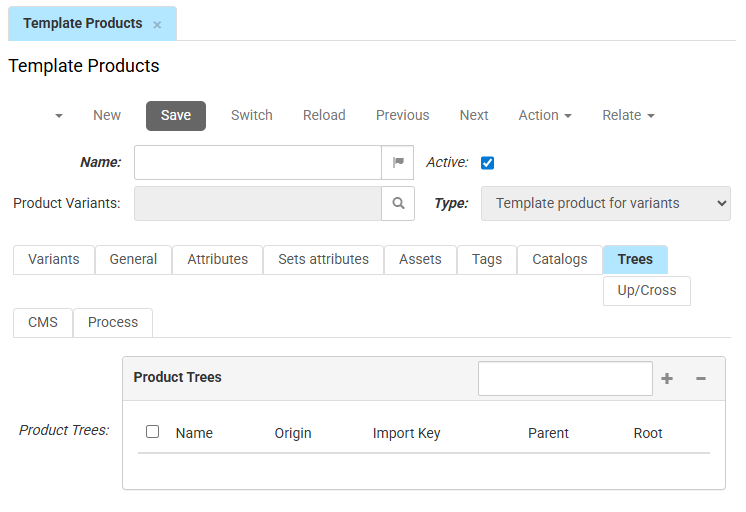
Trees
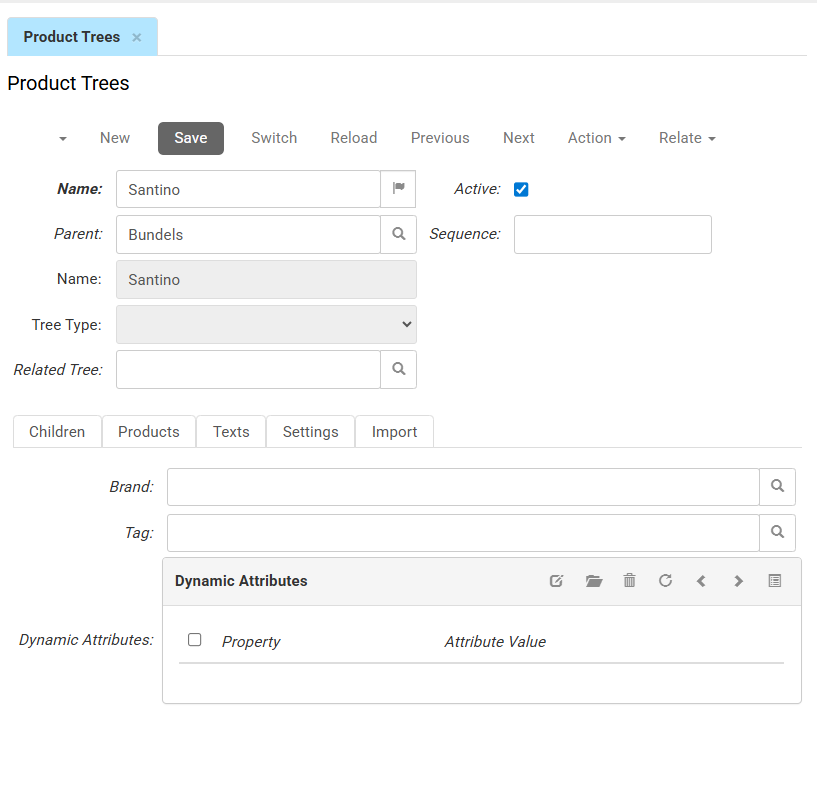
In this tab, you link the template to a product tree. Assigning a tree here automatically places all linked variants in the same category in the webshop.
Up/Cross
In this tab, you define up-selling and cross-selling relations. Items you add here appear as related or recommended products on the product page.
- Up Selling Products: Use this section to link preferred versions of the current product.
- Cross Selling Products: Use this section to link complementary items.
- Product Options: Use this section to add configurable add-ons or services.
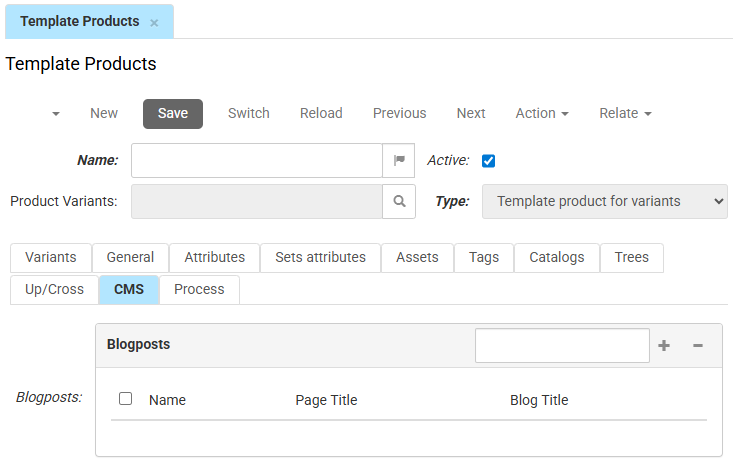
CMS
In the Blogposts section, you link the template to relevant CMS content. This lets you show related blog posts on the product page, or link the product within specific articles.
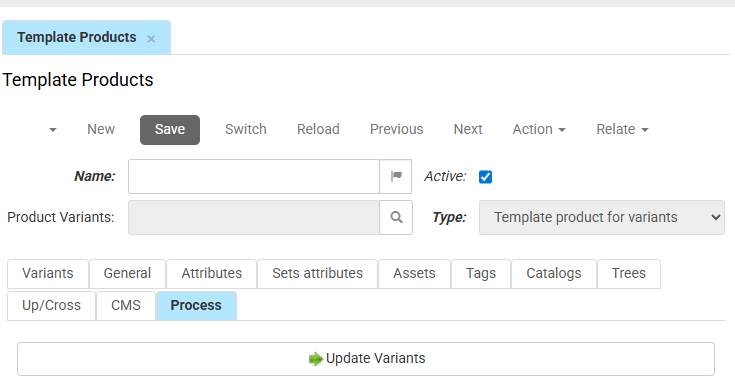
Process
Once you have finished updating the template, go to this tab and click Update Variants. This pushes all changes — including descriptions, attributes, and assets — immediately to every individual variant listed in the Variants tab.
When you update a field on a template product and push the changes to its variants, the template value overwrites the corresponding field on each linked variant. This is a database update and cannot be undone.
To keep a field unique per variant, leave that field empty on the template product.