Configure Product Variants
You can use a variant configuration to group related products, such as different sizes, colours, or materials, and display them as a single product in your webshop.
A variant configuration contains one or more variant products. Each variant product remains an individual product with its own product code, price, stock, and attributes.
Go to PIM > Product Variants > Variant Configurations to manage your variant configurations.
Create a Variant Configuration
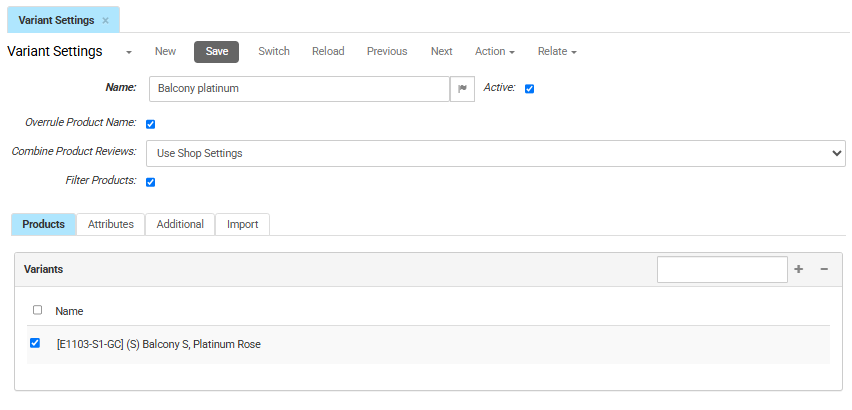
- Click New.
- Enter a value in Name.
- Make sure Active is selected - this is the default - to make the variant configuration available in the webshop.
- If required, select Overrule Product Name to display the variant configuration name instead of the individual product name on the Product Detail Page (PDP) and Product List Page (PLP).
Then continue with one of the two configurations below.
Configure a Basic Variant Configuration (Tiles / Dropdown)
Use this configuration when webshop visitors only need to select between variant products from a dropdown list or set of tiles.
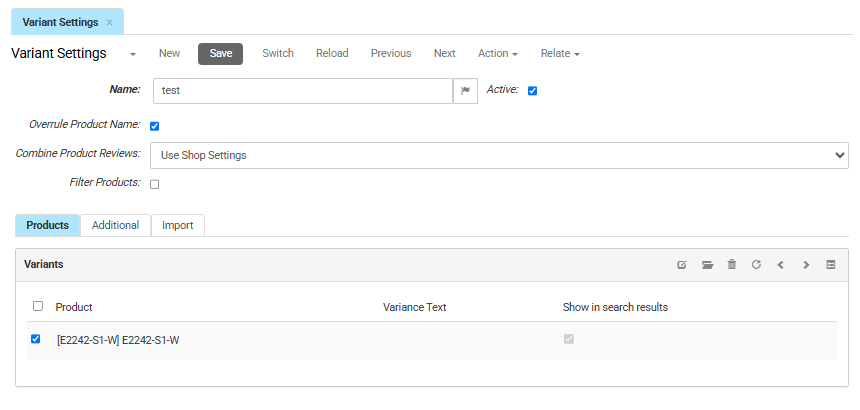
- Leave Filter Products cleared.
- Select an option from Combine Product Reviews:
- Always combines reviews from all variant products.
- Never displays reviews separately for each variant product.
- Use Shop Settings uses the default shop configuration.
- Click Save.
Add Variant Products
-
Open the Products tab and click the plus icon (+).
-
Add the products that belong to the variant configuration.
-
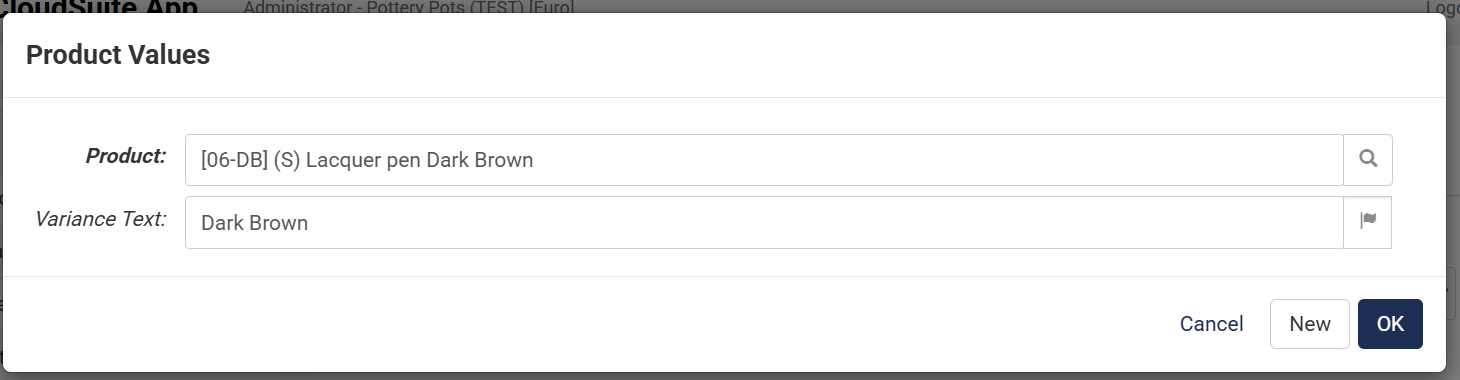
Optionally enter a value in Variance Text. This value is displayed below the product selection on the PDP.
 Note
NoteVariance Text is only available when Filter Products is cleared. It must be entered when adding products and cannot be added afterwards.
-
Click OK. Repeat to add more variant products.
-
Open the Additional tab to configure supplementary content (optional).
-
Click Save.
Configure an Attribute-Based Variant Configuration
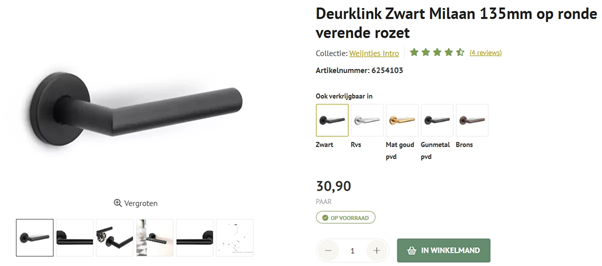
Use this configuration when webshop visitors need to filter variant products using attributes such as color, size, or material.
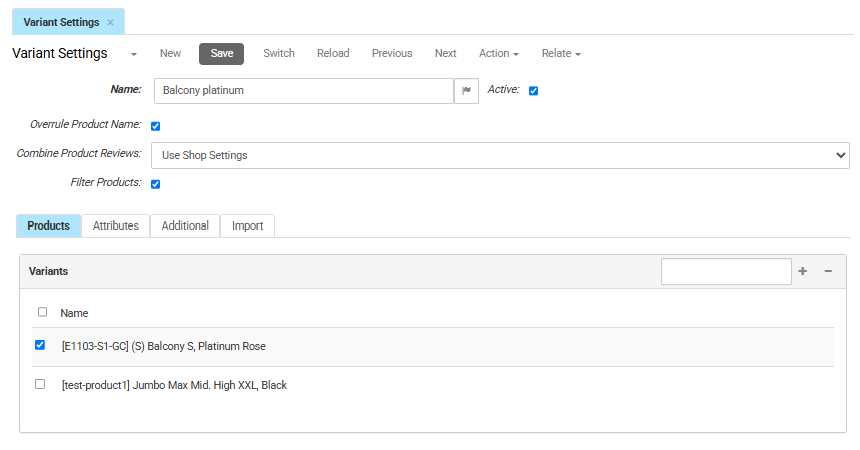
- Select an option from Combine Product Reviews:
- Always — combines reviews from all variant products.
- Never — displays reviews separately for each variant product.
- Use Shop Settings — uses the default shop configuration.
- Open the Products tab and click the plus icon to add a product. Click OK. Repeat to add more variant products.
- Select Filter Products. The Attributes tab appears.
- Click Save.
Configure the Display
Open the Attributes tab and configure the following.
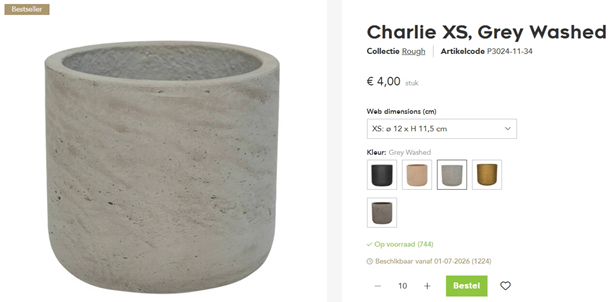
- Order Matrix displays variant products in a grid, allowing webshop visitors to order multiple variants at once.
- Lowest Price displays the lowest variant product price as the starting price on the PLP. The variant product with the lowest price is also used as the default product displayed in the product tile.
Configure Grouping
Select an option from Group by:
- Variant displays predefined attribute combinations, such as Blue / Large.
- Attributes displays individual attributes separately, allowing webshop visitors to select attributes one by one.
Configure Attributes
-
For each attribute, optionally enter a value in Text for Attribute to override the attribute name displayed in the webshop.
-
When using Group by attributes, optionally select Unique Search Result to limit the product variants that appear in the search result based on the attributes a customer selects.When only one variant product matches the selected combination, that product is displayed.
-
Optionally select a Default List Value to preselect an attribute value when the PDP opens.
Default List Value is available only when:
- Group by is set to Attributes.
- Unique Search Result is enabled.
- A maximum of two attributes are used as filters.
-
Click Save.
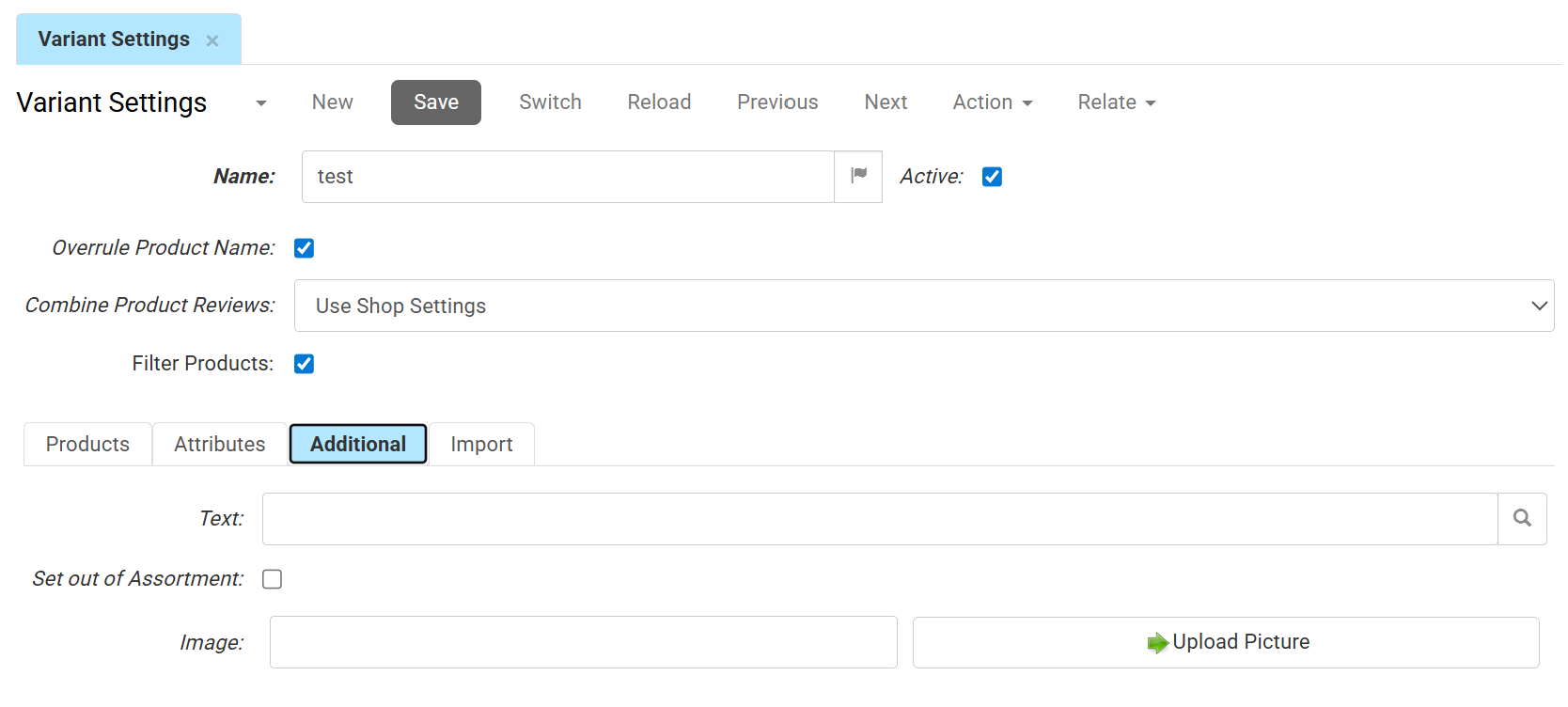
Configure Additional Content
- Open the Additional tab to configure supplementary content for the variant configuration (optional).
- Click Save.
Note
- Changes become visible after the next indexation run.
- If your webshop uses a Mosaic theme, no additional configuration is required.
- If your webshop uses a CloudSuite responsive theme, contact Customer Support to implement the required front-end changes.