Product Assets
Product assets are media files that are linked to a product for display on product-related pages in your shops.
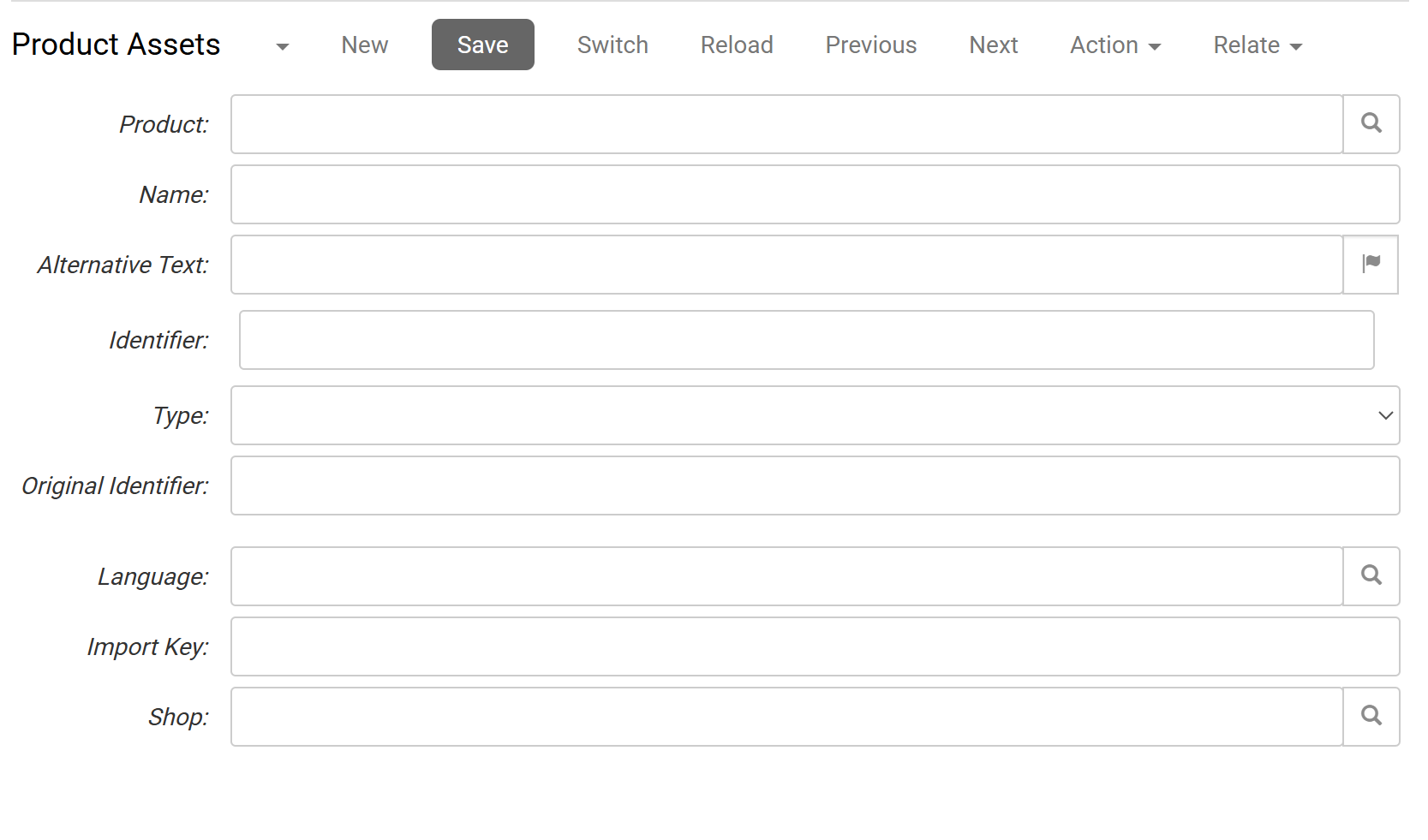
To work with product assets, in the CloudSuite App go to PIM > Product Assets. An overview appears, listing all product assets that have already been defined. Double-click an existing product asset to open its details or click New to create a new one.
Another way to add an asset to a product is from the eCommerce tab in the product details (PIM > Products).
-
Select the Product to which the asset must be linked. Start typing the name or SKU to select the product from the list.
-
Name sets an internal label for the asset. This name is visible in the CloudSuite Admin overview and appears to customers in the webshop depending on the active theme..
-
If you enter an Alternative text, this will be shown in a pop-up when the user hovers the mouse over the image. This also improves SEO.
-
The Identifier specifies the file reference used by CloudSuite.
- For DAM images, enter the exact file name including extension.
- For external sources (such as a CDN), enter the relative URL or path to the file.
-
The Upload Picture button is available only for image-related Types (see below). Click to upload the picture if it is not already available in CloudSuite.
NoteA product asset must be saved at least once (and then re-opened for editing) before images can be uploaded. This is a known limitation.
-
The Type of the asset determines the nature of the asset and therefore, what you can do with it. For more information, see further down.
-
The Original Identifier sets the location of external assets or source URL..
-
The Import Key is the unique identifier used during data imports.
-
You can specify that the asset is used in a particular Language or Shop only. If you don't, then the product asset is automatically available for all languages and shops.
:::null Note
- A product asset must be saved before you can upload files.
- Visibility of images may depend on product configuration settings such as showing images in the webshop.
:::
Images
Most of the Types that you can choose, refer to simple image files.
- If you set the Type to Product Image, the image that you choose can be used to show the product by default.
- If you set the Type to Additional Product Image, the image that you choose can be used to show the product when the shop visitor hovers the mouse over the product, or to shown the product on the PDP (Product Detail Page).
- If you set the Type to Product for Emails, the image that you choose can be used to show the product in the shipping and confirmation emails.
- If you set the Type to External URL, you can enter (as the Original Identifier) the full URL of any image file on the Internet.
External documents
- If you set the Type to External URL, you can enter (as the Original Identifier) the full URL of any document (such as a pdf document) on the Internet. This can be useful for uploading product manuals etc.
Videos
Videos can be shown only if they are included in the shop design. If you are interested in showing videos with your products, please contact your consultant or Customer Support.
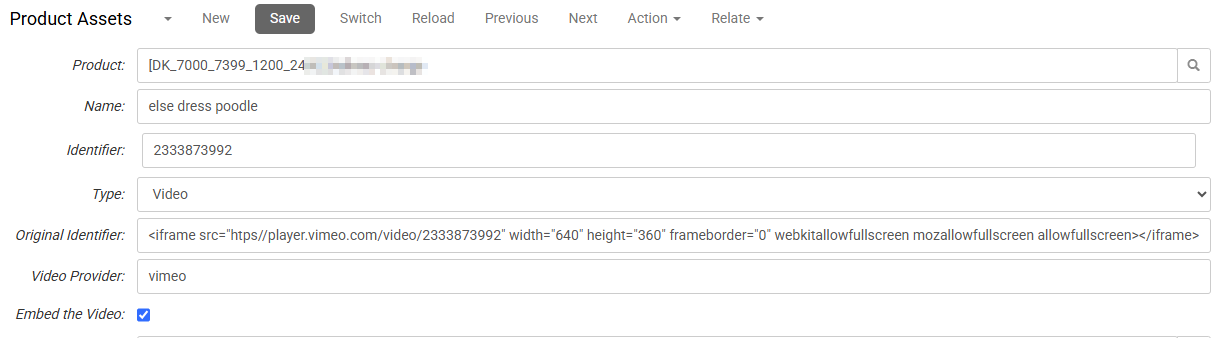
If you set the Type to Video, two additional fields appear:
- The Video provider is, for example,
vimeooryoutube. - Check Embed the Video to show the video embedded in the page content. The Original Identifier is then an HTML
iframetag. To show the video in its own browser tab, do not check this field and remove theiframetag from the Original Identifier.
Downloadable Files
Downloadable files enhance the customer experience and add value to your products.
If you set the Type to External URL, you can link to resources such as an assembly manual, a software license, or bonus content.