Product Export
Use Product export to export specific product data from your catalog into a downloadable file.
Go to PIM > Product Export. An overview appears, listing all export profiles that have already been defined. Double-click an existing profile to edit it or click New to create a new one.
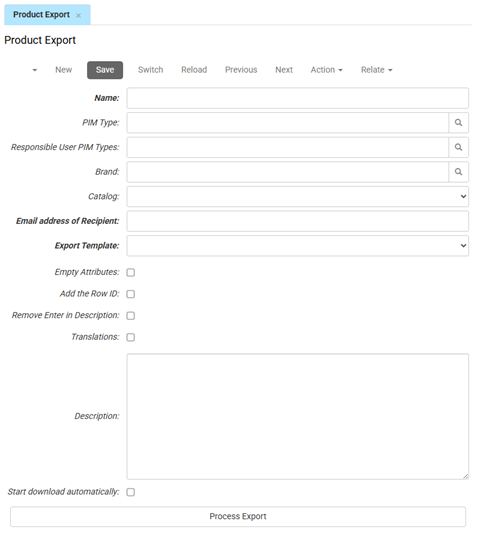
Export Filters
- Enter the Name of the export profile. This name is used to identify the export configuration.
- PIM Type filters products by their specific PIM classification.
- Responsible User PIM Types: The user who receives the exported data.
- Brand filters products by brand.
- Catalog filters products by catalog.
Export Settings
- Email address of Recipient specifies the email address that receives a notification or download link once the export has completed.
- Export Template specifies the file format and column layout used for the export.
- Empty Attributes includes product attributes with no value in the export.
- Add the Row ID adds the product ID to each product row in the export.
- Remove Enter in Description removes line breaks from exported descriptions.
- Translations includes translated product content (for all configured languages) in the export.
- Description provides an internal note area to describe the export.
Processing
- Start download automatically links the export profile to a scheduled export job. When a scheduled export job is configured, this export is processed automatically.
- Process Export generates the export based on your saved settings.