Carriers
To manage your shipping providers, navigate in the CloudSuite App to Order Management > Configuration > Carriers. An overview appears, listing all carriers currently defined. Double-click an existing carrier to edit its details or click New to create a fresh one.
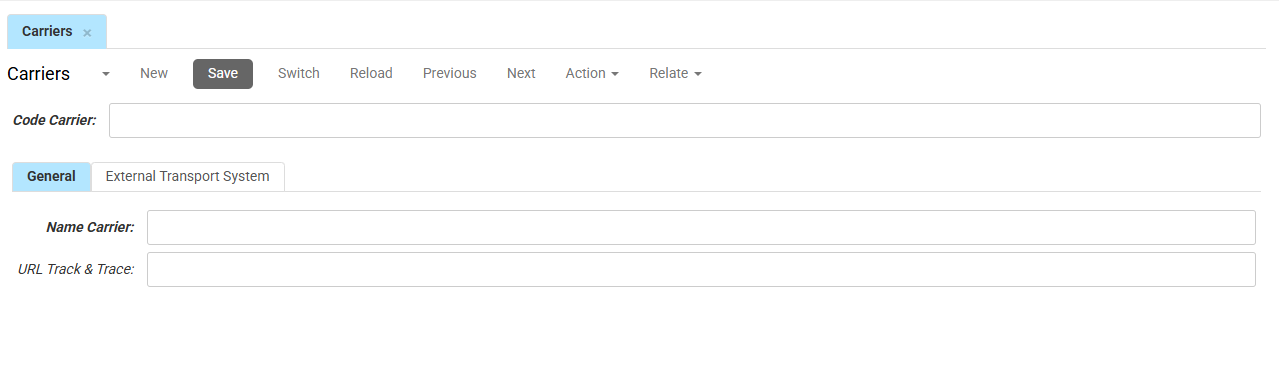
- Enter the Code Carrier. This is the unique internal identifier for the shipping provider (e.g., "UPS" or "DHL").
In this tab, you maintain the basic identification and tracking information for the carrier.
- Name Carrier sets the shipping provider's title as it appears in the system and to customers.
- URL Track & Trace defines the base web address for tracking shipments.
External Transport System
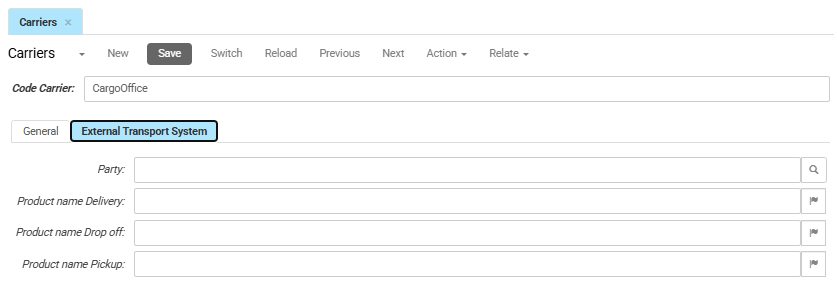
This tab is used for advanced configurations when the carrier is integrated with an external transport management system (TMS) or specialized shipping API.
- Select the Party (Customer) associated with this carrier. CloudSuite uses this Party to store and link addresses for selected drop-off points or parcel lockers
- Enter the Product name Delivery to specify the name for the standard delivery service. Use the flag icon to provide translations for the service name.
- Enter the Product name Drop-off to specify the service name used when a customer selects a parcel shop or drop-off location. Use the flag icon to provide translations for the service name.
- Enter the Product name Pickup to specify the service name used when the carrier is scheduled to pick up goods from a specific address. Use the flag icon to provide translations for the service name.