Product Trees
You define how products are grouped and presented in your webshop using product trees. A product tree contains categories and subcategories that guide webshop visitors to the correct product.
Go to PIM > Trees > Product Tree. An overview appears, listing all existing product trees. Double-click a tree to open it, or click New to create one.
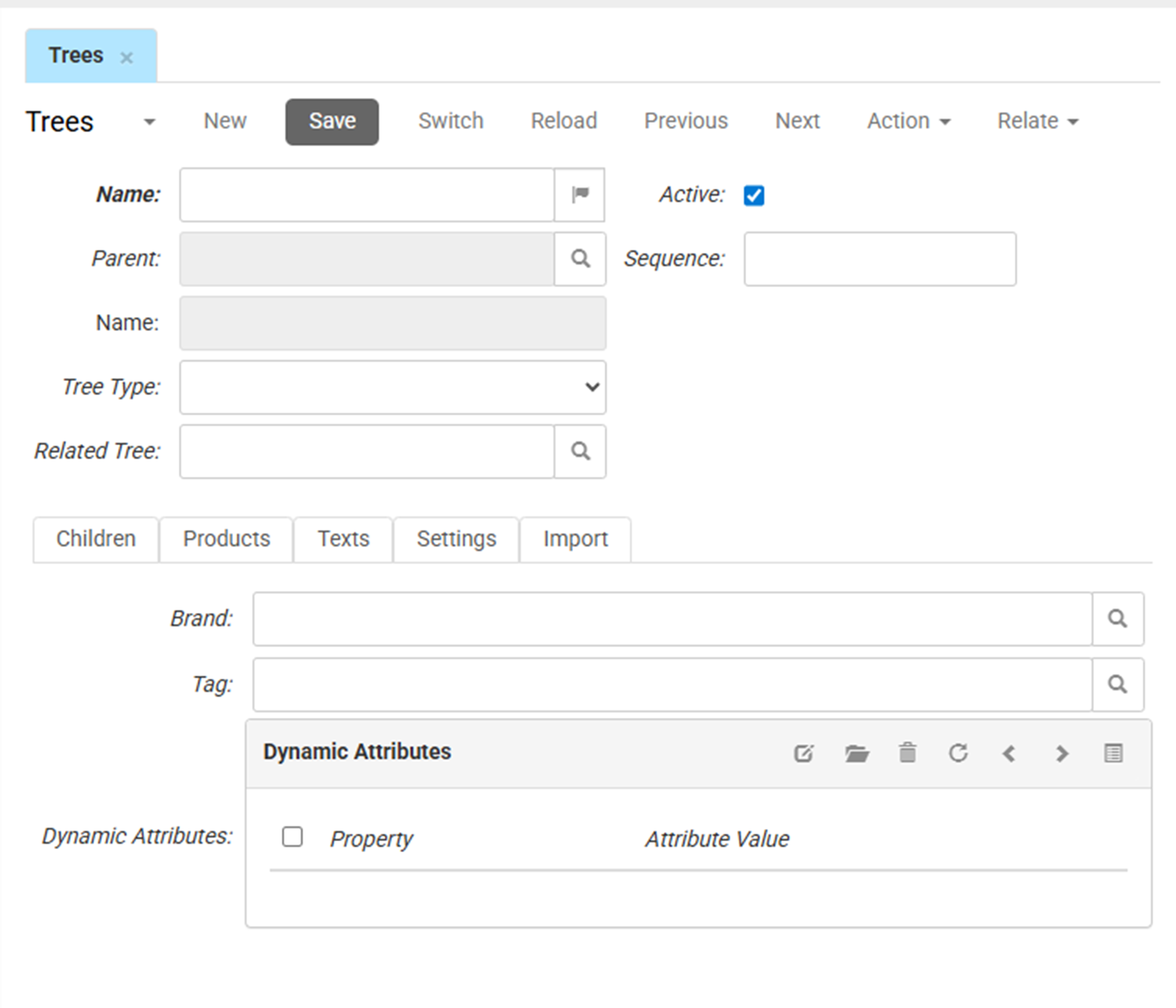
- Enter the Name of the product tree. This name can be displayed to webshop visitors and can be translated. It is important to name your product categories using keywords that your customers would use in order to lead them directly to the category landing page.
- Active indicates whether the product tree is visible in the navigation. New product trees are active by default. However, if there are no products linked to a tree, the tree remains hidden even if it is active.
- Parent, shows the name of the parent product tree. You cannot assign a parent when creating a new tree.
- Sequence sets the numerical order in which trees at the same level are shown. Trees with lower sequence numbers appear higher in the list. This works only when the sequence is set as the Tree Navigation Sort Mode in the shop settings.
- Tree Type defines the type of product tree. Select the Tree Type from the drop-down menu to specify the classification category (e.g., Lateral behavior or Dynamic Tree Pages).
- If applicable, select a Related Tree to link the tree to another tree structure for cross-referencing or secondary navigation purposes.
Children
This tab lists any subtrees of the current tree.
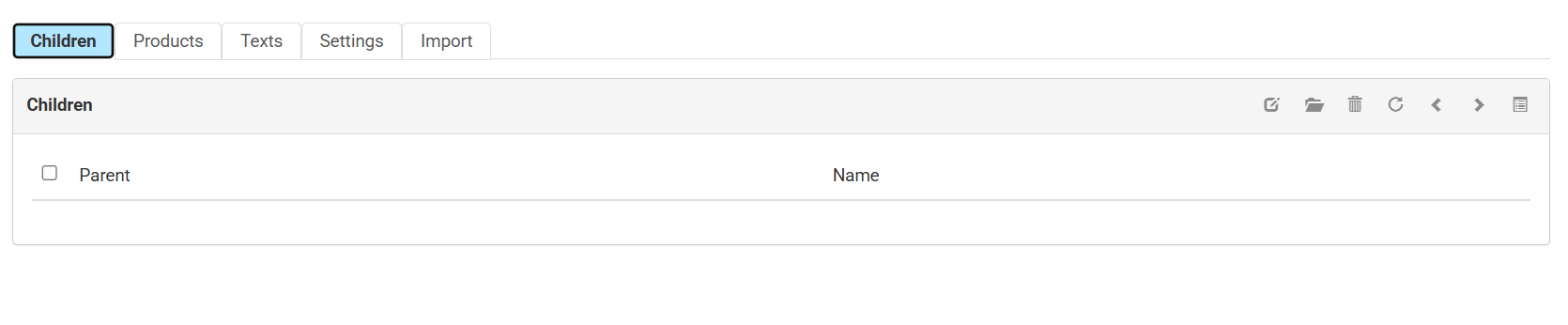
To determine the order in which subtrees are shown, choose the Sequence numbers for each of them carefully, from lower (top of the list) to higher (bottom bottom of the list).
:::null Drag & Drop Subtrees
If you are using the desktop App, you can drag-and-drop subtrees to reflect the order in which you want them to be shown. This is not possible in the web version of the app or the desktop version for Mac.
:::
Products
The Products tab shows which products are linked to this specific tree.
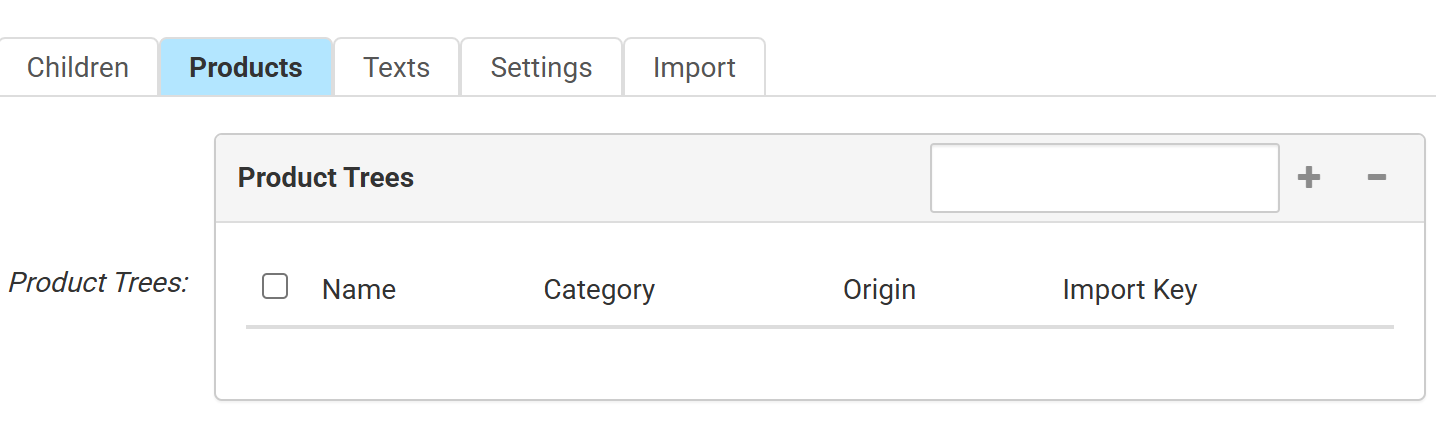
- Brand and Tag link products to the tree based on these identifiers. Click the search icons to select a brand or tag. When a product matches these criteria, it appears under this tree in the webshop
- Dynamic Attributes automatically links products to the tree when they have matching attribute values.
- Select a Property (Attribute) and a corresponding Attribute Value.
- Use the toolbar icons to add, edit, or delete these rules.
Using dynamic attributes ensures that any new products added to the PIM with these matching attribute values will automatically appear under this tree.
Texts
The Texts tab contains the text and SEO settings. These fields can be translated.
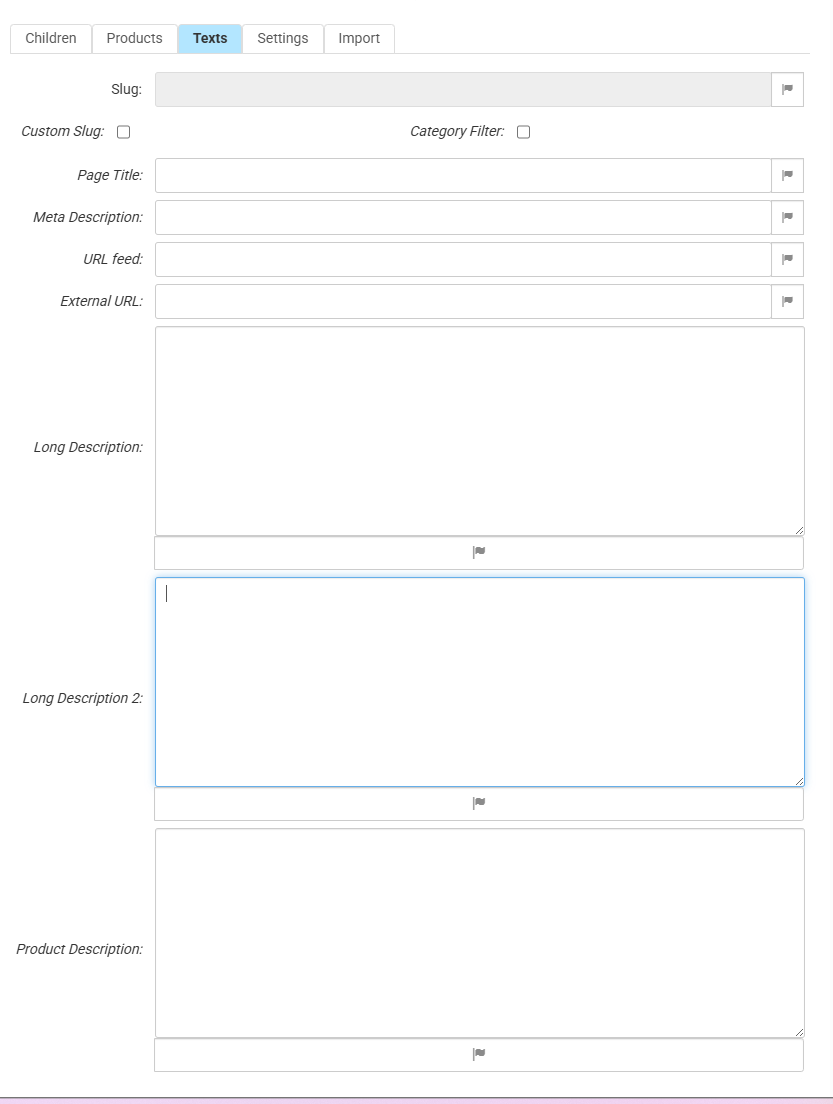
- Slug: shows the default URL path for the tree.
- Check Custom Slug to manually enter a specific URL path.
- Category Filter: Check this to use the tree as a filter.
- The Page Title appears in the browser tab and in the search results.
- Meta Description is a summary that appears as a snippet in search engine results.
- Use Long Description / Long Description 2 to enter primary and secondary texts shown on the product list page (PLP) for this tree.
- Product Description is the default description that applies to the products (PDP) grouped within this tree.
Settings
This tab contains technical and visual configurations.
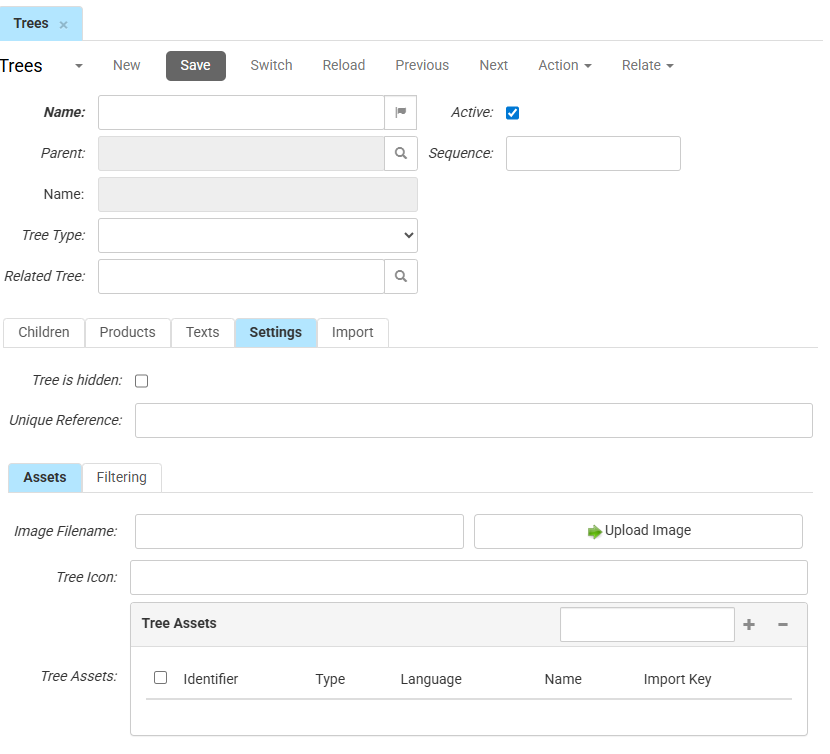
- Tree is hidden: Check this to hide it from the main navigation menu (it does not deactivate the tree).
- Unique Reference: Enter a specific identifier required by an external system.
Filtering
The Filtering tab configures the filters on the category page.
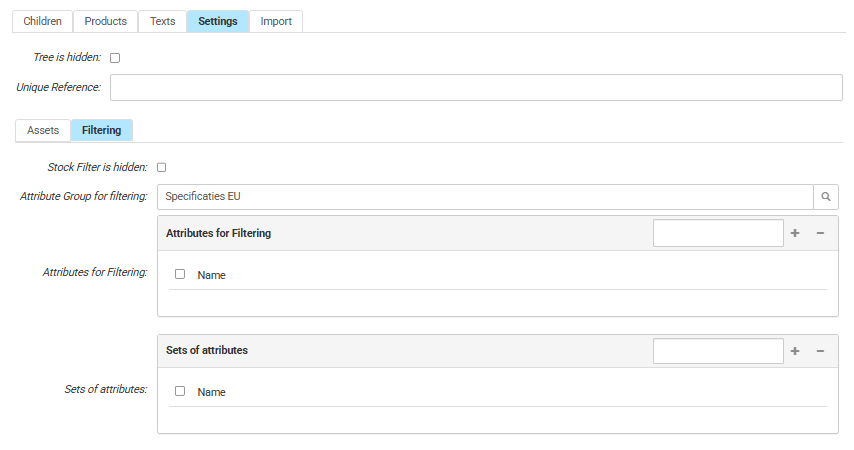
- Stock Filter is hidden determines if customers can filter products by availability.When enabled, the webshop does not show stock-level filters.
- Attribute Group for filtering allows you to select a pre-defined attribute group for filtering products.
- Attributes for Filtering allows you to manually add individual product attributes, such as Color or Material. These appear as filter options for the customer on the category page.
- Sets of attributes adds entire pre-configured sets of attributes to the filtering options at once.
Import
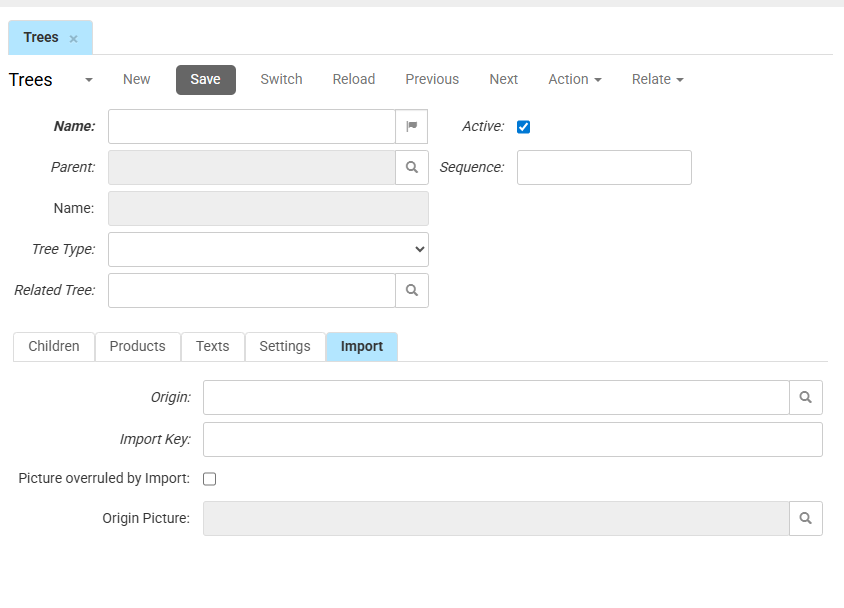
The Import tab displays technical data regarding the external origin of the tree node.
- The Origin identifies the source system, company or administration that supplied this record. In multi-administration or multi-entity setups, multiple origins may apply.
- The Import key is the unique identifier defined for your imports, used to match, retrieve, or update records
- Picture overruled by Import determines if the import source overwrites manually uploaded images. When selected, the system uses the image from the external source.
- Origin Picture: Displays the reference for the image provided by the external system.