Configure a Search Term
Group related search terms as synonyms and control how they affect the search results in your webshop.
Prerequisites
- Select the correct language before creating a search configuration. Search configurations are language-specific.
Start a Search Configuration
CloudSuite automatically collects the terms visitors use in your webshop. You can find the most frequently used terms under Search & Navigation > Search Management on the Top Searches tab. Go to the Search Configurations tab to see which terms you have already configured.
You can start a new configuration in two ways:
- On the Top Searches tab, click on the + [term] button under Configure to open the Configure a search screen for that term.
- On the Search Configurations tab, click + Add Search to create a new configuration, or click Edit next to update an existing configuration.
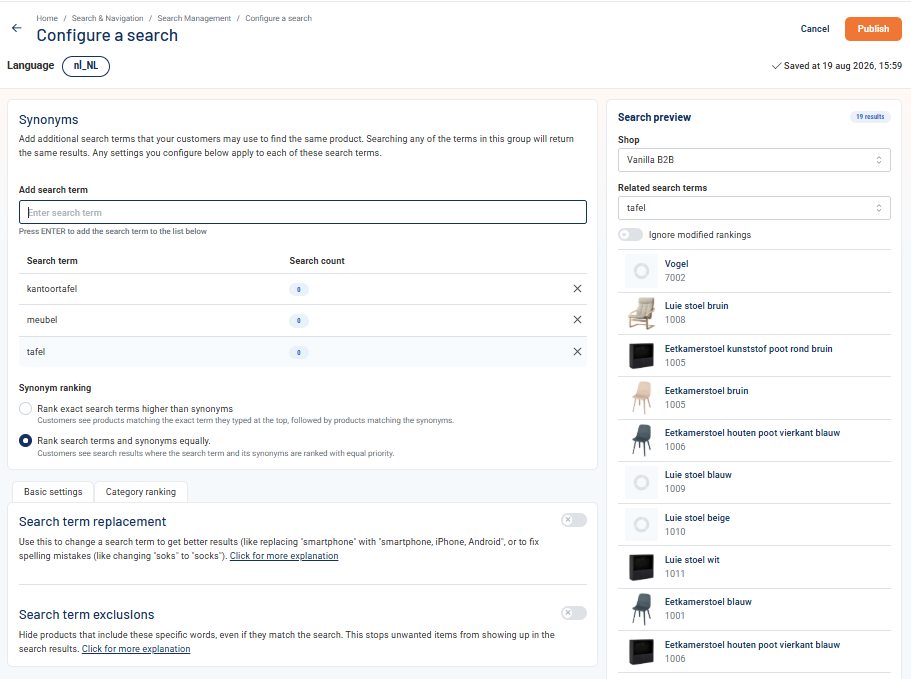
Add Synonyms
- Under Add search term, enter the a search term and press Enter.
- Repeat this step for each additional synonym you want to add.
If you started from the Top Searches tab, the selected search term is already included.
Searching any of the terms in the group will return the same results.
Set Synonym Ranking
Choose how products are ranked when a visitor searches for one of the search terms in this configuration.
- Select Rank exact search terms higher than synonyms to show products that contain the exact word the visitor typed first.
- Select Rank search terms and synonyms equally if you want all search terms to return search results in the same order.
Configure Additional Search Behaviour
You can also:
- Use Search Term Replacement to define which terms the search engine actually uses when a visitor searches for this term.
- Use Search Term Exclusionsto hide products containing specific words from the results.
Preview the Search Results
Use the Search preview panel on the right to check your results before publishing. Switch terms in the Related search terms selector to compare the results.
Save or publish the configuration
- Click Save Draft to save without publishing.
- Click Publish to make your configuration active in the webshop.
After publishing, the configuration applies to all search terms in the group.
If your environment makes use of the Relevance & Recommendations module, you can also Rank search results by Category.