Use Search Term Replacement
Use search term replacement to control which terms the search engine uses when a visitor searches for a configured term or one of its synonyms.
You can use replacement terms to:
- Expand results: include related or more specific terms in the search.
- Improve relevance: a search term is too short or too broad and returns noise; replacing it with a more specific term improves the results.
- Correct Misspellings: replace common misspelled search terms with the correct search term.
Prerequisite
- Select the correct language before creating or editing a search configuration. Search configurations are language-specific.
Configure Search Term Replacement
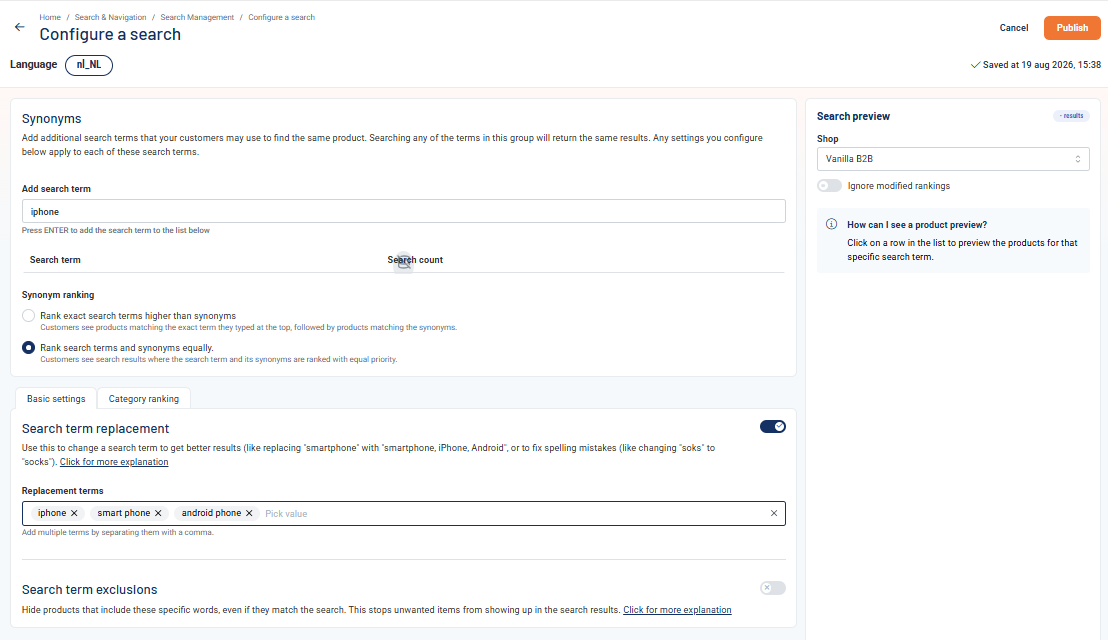
- In the CloudSuite Admin, go to Search & Navigation > Search Management.
- On the Search Configurations tab, click Edit next to the search term you want to configure, or click + Add Search to create a new one.
- Go to the Basic settings tab.
- Enable Search term replacement using the toggle.
- Under Replacement terms, enter a term and press Enter. You can also enter multiple terms separated by commas.
- Repeat for each term you want to add.
- Use the Search preview to check the results.
- Click Publish.
When a visitor searches for this term or any of its synonyms, the search engine uses the replacement terms instead.
Expand Results
A visitor searching for smartphone should also find products containing iPhone or Android, but you do not want visitors searching for iPhone to see every smartphone product.
Configure:
- Search term: smartphone
- Replacement terms: smartphone, iPhone, Android
A search for smartphone now uses all three terms. A search for iPhone is not affected unless iPhone is included in the same search configuration as a synonym
Improve Irrelevant Results
A search for TV returns unrelated products because the letters also occur in other product names.
Configure:
- Search term: TV
- Replacement term: television
The search engine uses television instead of TV, reducing unrelated results.
Correct common misspellings
Visitors may search for i-phone or ifone instead of iPhone.
Configure:
- Search terms: iPhone, i-phone, ifone
- Replacement term: iPhone
Because replacement applies to all terms in the configuration, each spelling uses iPhone as the search term.
Combine Replacement terms with Synonyms
Search term replacement applies to every synonym in the same search configuration.
For example, configure:
- Search terms: ui, ajuin
- Replacement terms: uien, uitjes
When a visitor searches for ui or ajuin, the search engine uses uien and uitjes.
Before configuring search terms, map out their relationships and decide whether each term should be a synonym, a replacement term, or both.
Keep related terms together in one configuration where possible. This makes the search behavior easier to understand and helps prevent gaps, duplicates, and conflicting configurations.