Use Search Term Exclusions
Use search term exclusions to remove irrelevant products from the results for a configured search term. Products containing an exclusion term are hidden from the results.
Prerequisites
- Select the correct language before creating or editing a search configuration. Search configurations are language-specific.
- The Relevance & Recommendations module is active.
When to Use Exclusions
Use exclusions when a search term keeps returning products that are care not relevant to the visitor’s search.
A good example is a visitor searching for radish who also sees micro radish and radish sprouts. If these products are not relevant, you can exclude micro and sprouts to improve the results.
Be careful with exclusions. A product containing an excluded term is completely hidden from the results. Before adding an exclusion, consider whether the product could still be relevant to some visitors.
When Not to Use Exclusions
Do not use exclusions to move products when you only want products to appear lower in the results. Use Category Ranking to move products to the bottom without removing them completely.
- This feature is only available for customer with the relevance module.
Configure Search Term Exclusions
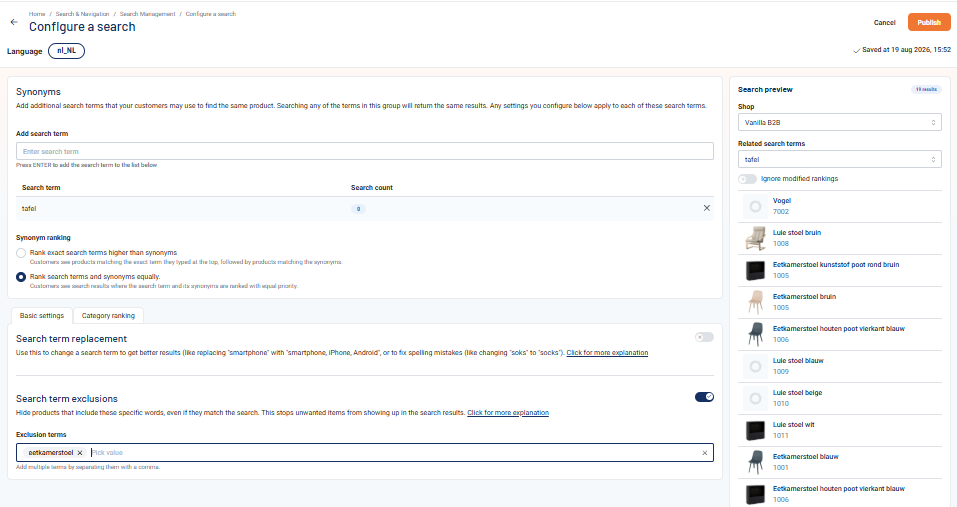
- In the CloudSuite Admin, go to Search & Navigation > Search Management and open the Search Configurations tab.
- On the Search Configurations tab, click Edit next to the search term you want to configure, or click + Add Search to create a new one.
- Go to the Basic settings tab.
- Enable Search term exclusions using the toggle.
- Under Exclusion terms, enter a term and press Enter. You can also enter multiple terms separated by commas.
- Repeat for each word you want to exclude.
- Use the Search preview panel to verify which products are removed from the results.
- Click Publish.
Products containing the excluded terms no longer appear in the results for this search configuration.
Best Practices
- Focus on common searches: Use the Top Searches tab to identify frequently used search terms that produce irrelevant results.
- Be specific. Exclude only the words that cause the problem. Excluding a broad term may hide products your visitors actually want to find.
- Check the preview. Always verify the results in the Search preview panel before publishing. Make sure you are not removing products visitors may still want to find..
- Review from time to time. As your product catalog changes, exclusions that made sense before may no longer make sense. Recheck your configurations when the catalog changes.