Generate Product Names with Attributes and Translations
In the CloudSuite App, you can generate product names automatically, based on a defined structure and selected attributes.
If translations are available, the system generates these product names in multiple languages.
Result
After completing this recipe, you can generate multiple product names for a selected PIM type.
Prerequisites
Before starting, ensure the attributes you want to include in your product name (e.g., Color, Size, Material) contain values and the required translations.
Step 1 - Enable Product Name Generation
-
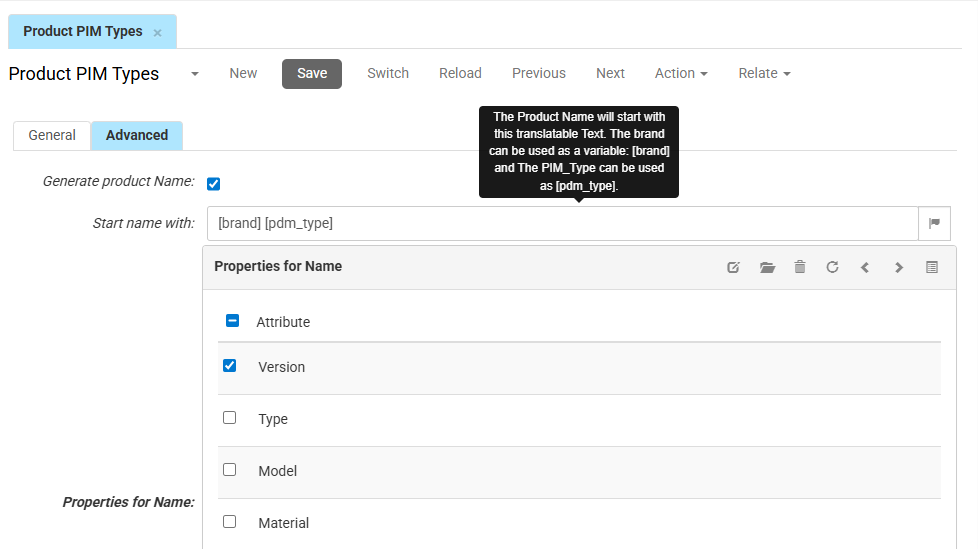
In the CloudSuite App, go to PIM > Product PIM Types and select a PIM Type.
-
Navigate to the Advanced tab.
-
Enable Generate product Name
-
The fields for configuring the product name become available.
Step 2 - Define the Product Name Structure
-
In Start name with, enter the beginning of the product name. You can
either:-
Enter static text (for example Running Shoe).
-
Use variables (for example
[brand],[pdm_type]
The system replaces variables with the corresponding product values.Example:
[brand], Running ShoeResult:
Nike Running Shoe
-
-
In the Properties for Name, select the attributes. The selected attributes are used to build the product name in the order they are configured.
-
Click on the edit icon to configure the attributes
The Define Attribute window opens.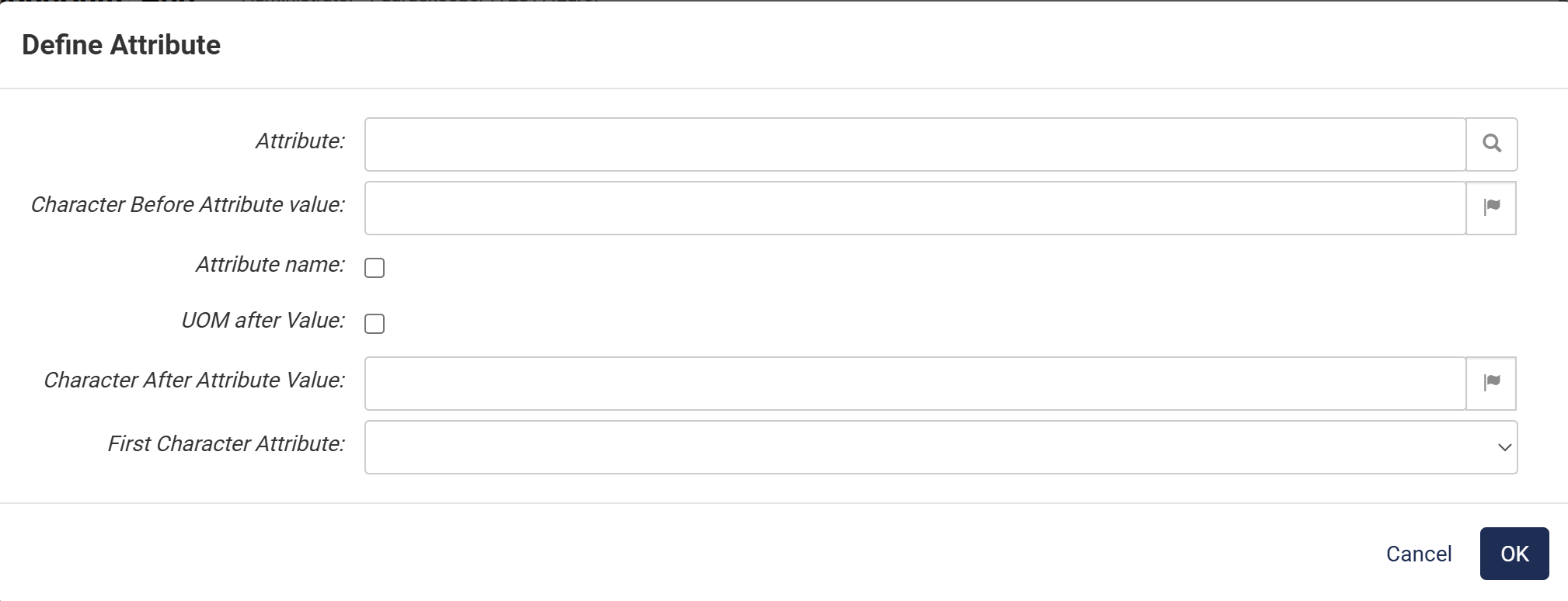
-
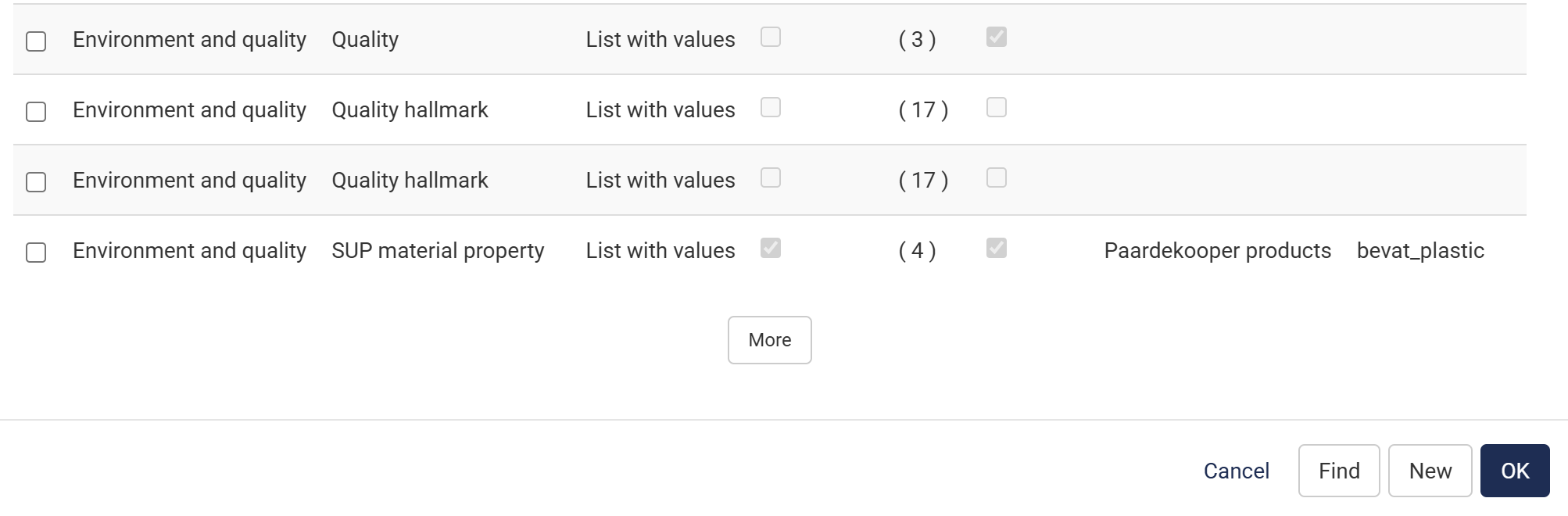
Attribute: Select the source attributes using the search icon. Select the attributes you want and click OK.
-
Character Before/After Attribute value: Enter characters, such as a comma, space, or brackets, to separate values (for example - or space).
-
Attribute name: Check this to include the attribute label (e.g., "Color: Blue" vs. "Blue").
-
UOM after Value: Check this to include units (for example mm, kg).
-
Click OK to save the configuration.
Example:
English result: "Nike Running Shoe Blue"
German result: "Nike Laufschuh Blau"
NoteEnsure that each attribute value (e.g., "Blue") has a translation if you use multiple languages (e.g., "Blau" for German).
See How to add translations for attributes.
Step 3 - Configure Translations
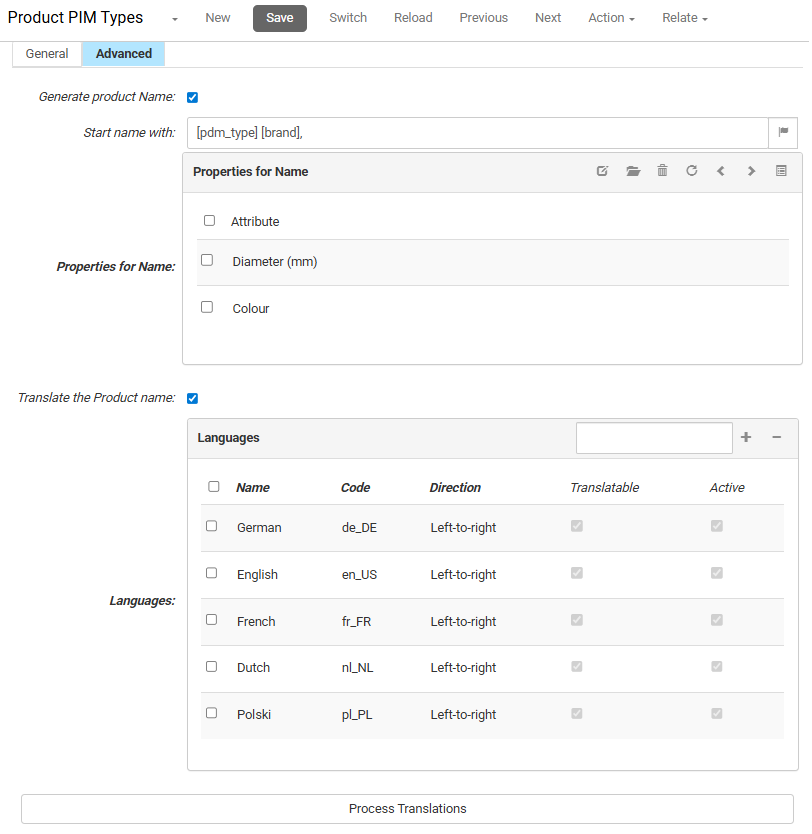
- Enable Translate the Product name. When enabled, the system generates product names for each selected language
- In the Languages table, select the required languages
The system uses:
- The translated values from Start name with
- The translated attribute values
If a translation is missing, the system uses the default language value.
Step 4 - Generate Product Names
- Click Save to store your configurations.
- Click Process Translations at the bottom of the screen.
The system:
- Generates product names for all linked products to this PIM Type.
- Updates the product name as per the selected language.