Set up Email-based Two-Factor Authentication for B2B Webshop Users for B2B Webshop Users
You can configure email-based two-factor authentication (2FA) for your B2B webshop users. As an extra layer of security, users with this login type will be required to enter a verification code sent to their email address every time they log in.
Prerequisites
Before you start, contact CloudSuite Support Team to enable the storefront API and configuration for 2FA. The steps below are available once this is done.
Update the Shop Login Configuration
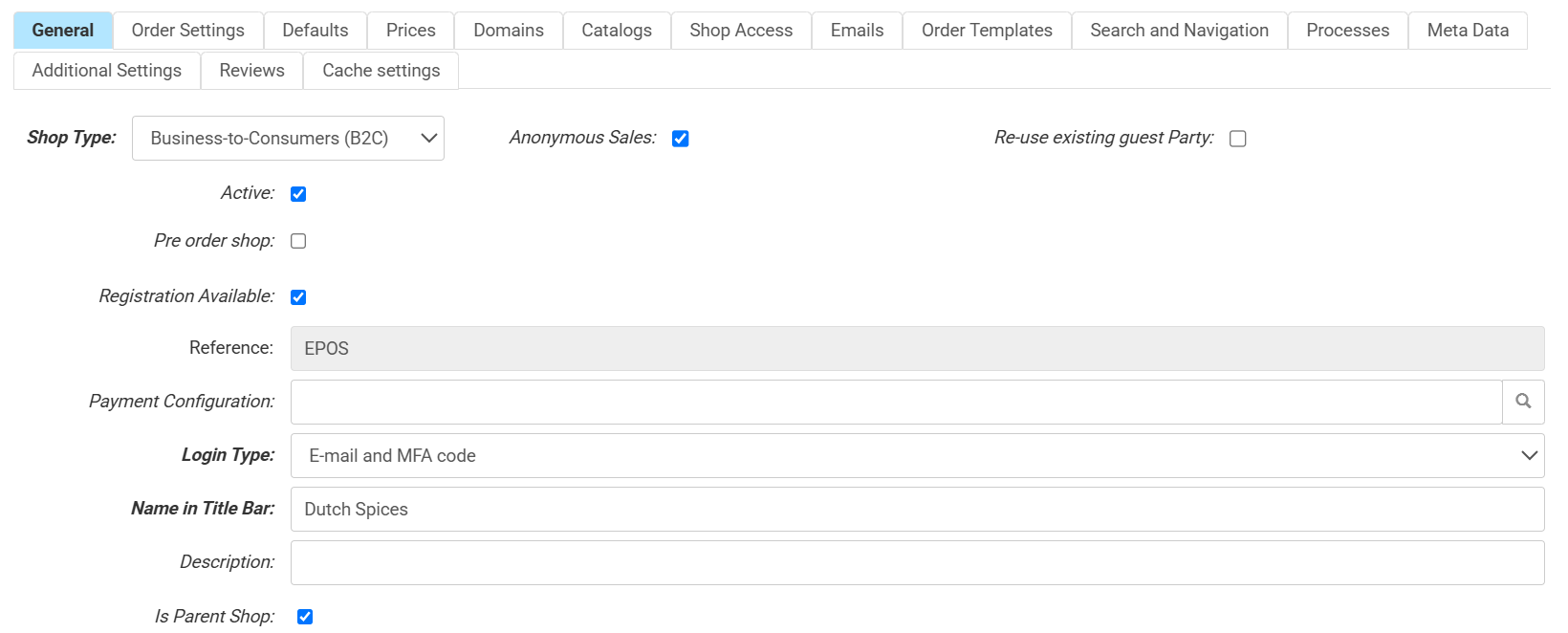
- Go to Stores > Shops and double-click a shop name to open and edit.
- Go to the General tab and click the Login Type drop-down
- Select E-mail and MFA code.
- Click Save.
Create the MFA Login Code Email Template
-
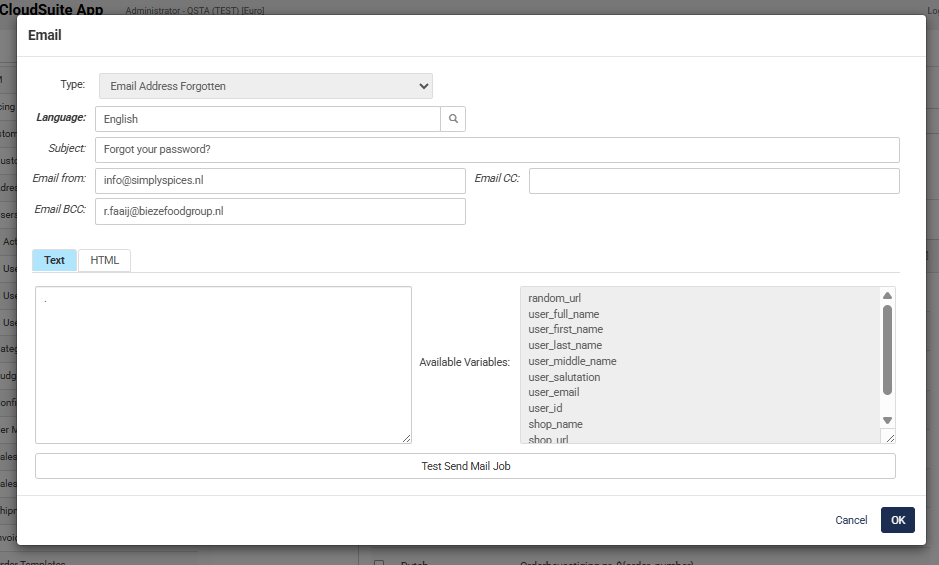
Go to the Emails tab.
-
Click the edit icon to create a new email template.
-
Click the Type dropdown menu and select MFA Login Code.
-
In the Language field, click the magnifying glass to select the language, for example, English.
-
Enter a value in the Subject field and fill in the email body. You can include token variables from the Available Variables block. For example: You are receiving this email because a sign-in request was made for your account (${user_email}) at ${shop_name}.
-
Click OK.
-
Click Save.
Some front-end configurations may be needed before this feature becomes visible to your visitors. Contact your consultant or Customer Support to arrange this.