Attributes
Attributes can be used in various parts of CloudSuite. They are commonly used as a further specification, or filter, on the PLP; but they can also be used as the basis of a tree or as a variant option.
To work with attributes, in the CloudSuite App go to PIM > Attributes > Attribute Properties. An overview appears, listing all attributes that have already been defined. Double-click an existing attribute to open its details or click New to create a new one.
When creating a new attribute, only a limited number of fields is available. Click Save to display the additional fields.
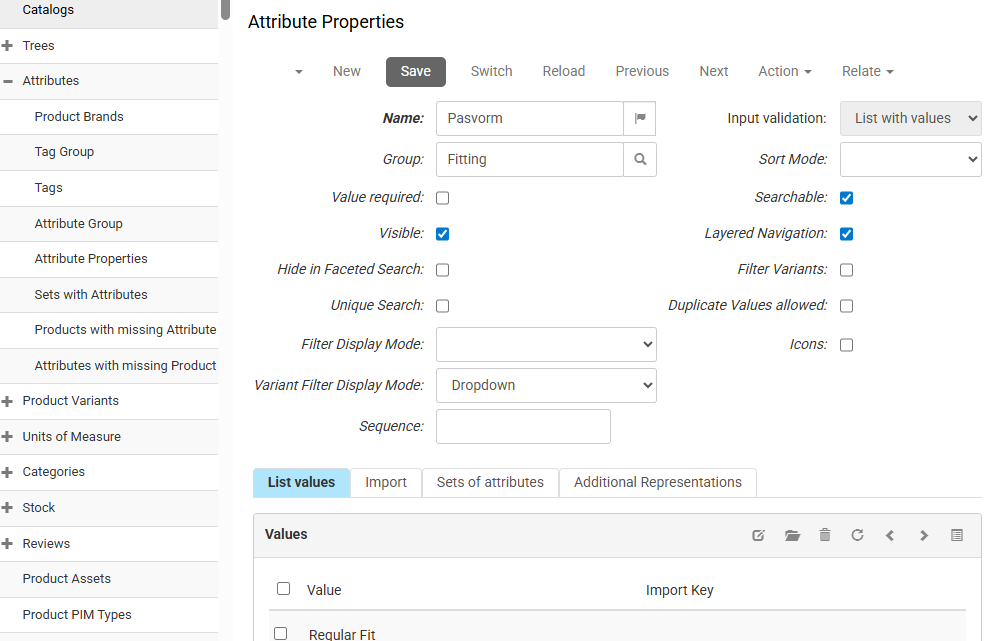
-
Enter the Name of the attribute. This can be set to be visible to shop visitors (see below), and can be translated.
-
Choose the Input Validation method by which a value of the attribute is validated. If the attribute is used as a variant filter, this field must be set to List with values.
noteThe input validation that you choose, determines which further fields are available.
-
If applicable, choose the Attribute Group that the attribute belongs to.
-
The Sort Mode determines the order in which attribute values are presented to the shop visitor.
-
Check Value required to make a value for the attribute required. For example, if you have an attribute Size for clothing, this would make sure that available sizes are always shown for the product.
-
Check Searchable to allow for the complete name of the attribute to be used as a search term.
-
Check Visible to have the value shown as product information.
-
Check Layered Navigation to have the attribute indexed and shown in the filters on de PLP. This is mandatory if you want to use the attribute as a variant filter or in a modified ranking. (This field is not initially available when creating a new attribute.)
-
Check Hide in Faceted Search to not show the filter in the PLP. (This field is not initially available when creating a new attribute.)
-
Check Filter Variants to allow the attribute to be used as a variant filter. (This field is not initially available when creating a new attribute.)
-
Check Unique Search to combine all attribute values (for example, all different sizes of a sweater) in the PLP into one. (This field is not initially available when creating a new attribute.)
-
Check Configuration Attribute to allow for the attribute to be used in the Product Configurator. (This field is not initially available when creating a new attribute.)
-
Check Duplicate Values allowed to be able to use the attribute multiple times, with different values, with the same product; for example, when the product is multicolored. (This field is not initially available when creating a new attribute.)
-
Next to Filter Display Mode, choose the way that a filter is shown in the PLP.
-
Check Icons to show a small image in the PDP. (This field is not initially available when creating a new attribute.) Note: the front-end may have to be modified for icons to be shown.
-
Next to Variant Filter Display Mode, choose the way that a variant filter is shown in the PDP.
-
For attributes where the Input Validation is set to Decimal number or Integer, you may select a UOM Property to add a Unit of Measure to the numerical value of the attribute.
List values
If the Input Validation is set to List with values, create the value list in this tab.