Search Management
To manage search terms, in the CloudSuite Admin go to Search & Navigation > Search Management.
Top Searches
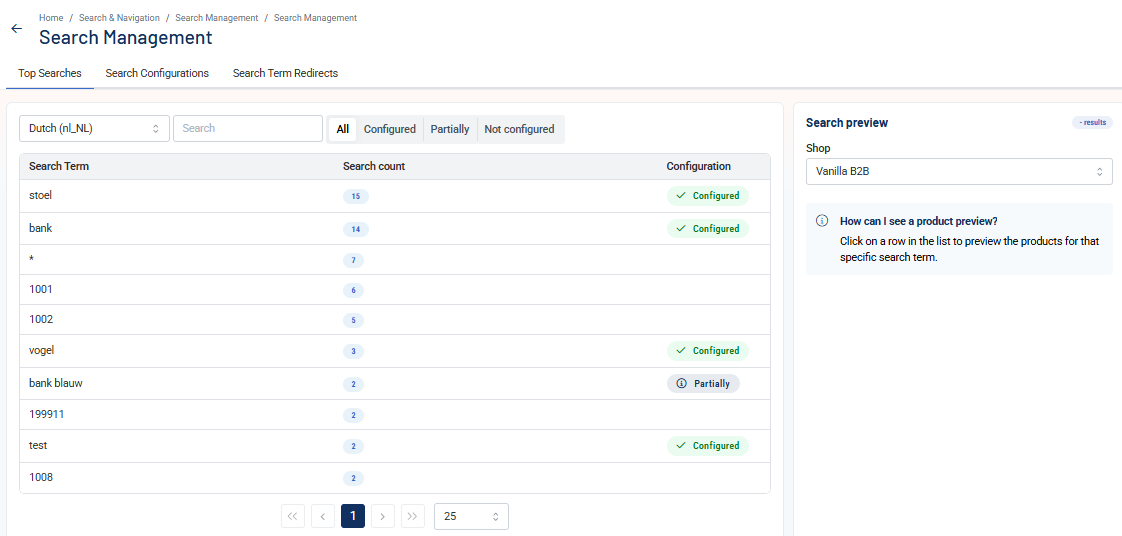
The Top Searches tab shows the search terms your visitors used most in the last 90 days. Use this overview to prioritize which terms to configure first.
- Use the Language selector to view top searches for a specific language. The list updates to show the most searched terms for that language.
- Use the Search field to find a specific term in the list.
- Use the filters All, Configured, Partially, and Not configured to filter the list by configuration status.
Each row shows a Search Term and its Search count (the number of times visitors searched for that term in the last 90 days in the selected language.
The Configuration column shows the status of each term:
- Configured — an active configuration exists for this term.
- Partially — the term consists of multiple words and at least one of those words has an active configuration. For example, "paprika rood" is partially configured if "paprika" is configured but "paprika rood” is not.
- No badge — the term has not been configured yet.
Click a row to preview the current search results for that term in the Search preview panel on the right.
- Use the Shop selector in the preview panel to see results for a specific webshop.
- When a configuration is active, the preview shows the configured search term above the results.
- When a term has no configuration yet, the preview panel shows a + [term] button under Configure. Click it to open the Configure a search screen for that term.
Click Configured on a row to open the existing configuration in the Configure a search screen.
Search Configurations
The Search Configurations tab shows all search configurations you have created. From this tab you can create, edit, and delete configurations.
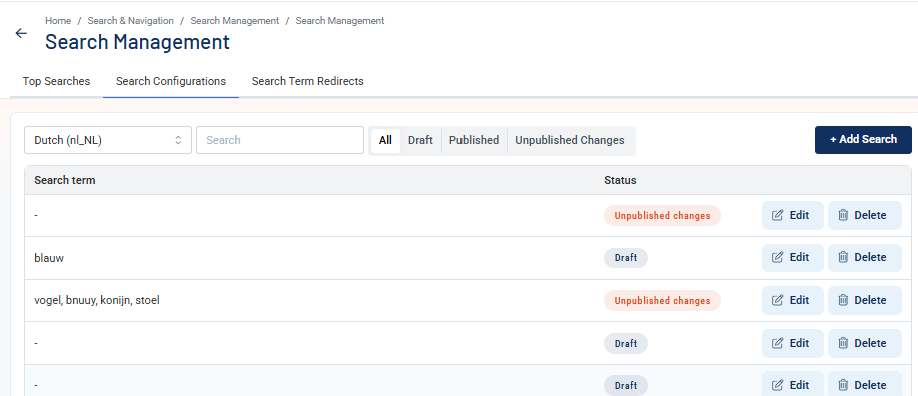
- Use the Language selector to view configurations for a specific language. New configurations are created for the selected language.
- Use the Search field to find a configuration by search term.
- Use the filters All, Draft, Published, and Unpublished Changes to filter the list by status.
Each row shows the configured Search term and its current Status.
- Click + Add Redirect to create a new redirect. A panel opens on the right with the following fields:
- Search Term — the term that triggers the redirect.
- Draft — the configuration is not yet active in the webshop.
- Published — the configuration is active in the webshop.
- Unpublished Changes — the configuration is active, but you have saved changes that are not yet published.
- Click + Add Search to create a new configuration. The Configure a search screen opens.
- Click Edit to open an existing configuration in the Configure a search screen.
- Click Delete to remove a configuration. The configuration is no longer active in the webshop.
Search Term Redirects
The Search Term Redirects tab shows all configured redirects. When a visitor searches for a configured term, they are sent directly to the destination you specify instead of seeing the standard search results page.
If a search term has both a redirect and a search configuration, the redirect takes priority. The visitor is sent to the redirect destination and does not see the configured search results.
Use redirects when a search term maps clearly to a specific page — for example, a brand name that has a dedicated brand page, or a category name that matches a category page.
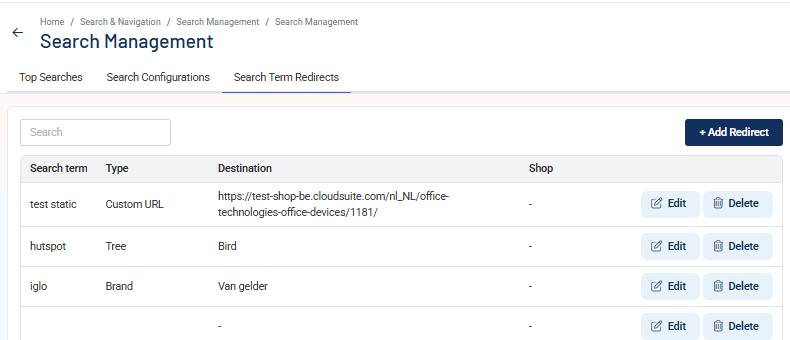
- Use the Search field to find a redirect by search term.
Each row shows the Search term, the Type of destination, the Destination, and the Shop it applies to.
- Click + Add Redirect to create a new redirect. A panel opens on the right with the following fields:
- Search Term — the term that triggers the redirect.
- Destination Type — the type of page to redirect to. The available options are Brand, Tree, Product, Tag, Custom URL, and CMS Page.
- Destination — the specific page or item to redirect to.
- Shop — the webshop this redirect applies to. This field is optional.
- Click Save to save the redirect.
- Click Edit to update an existing redirect. The same panel opens on the right.
- Click Delete to remove a redirect.