Configure a search
Use this screen to define how a group of search terms behaves in the webshop.
Go to Search & Navigation > Search Management
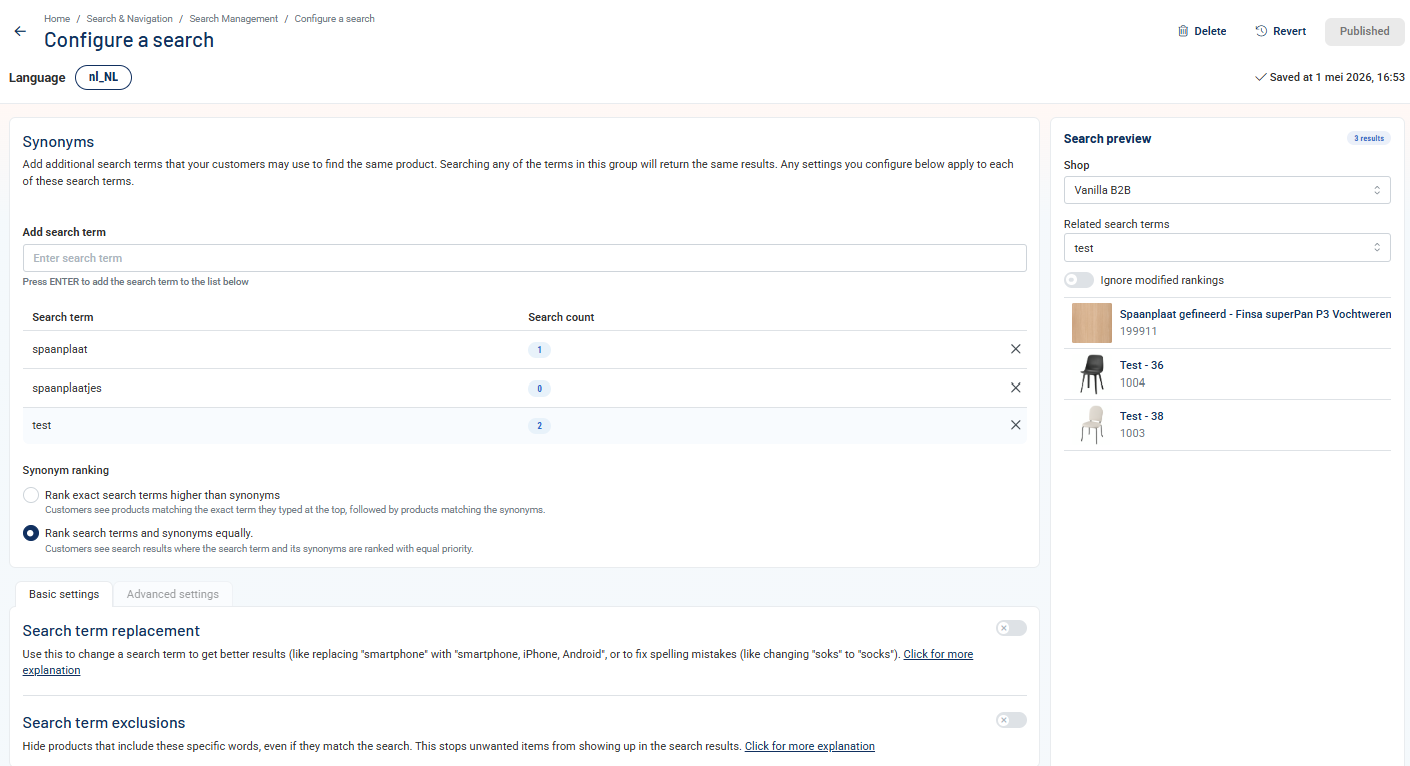
- Select the Search Configurations tab.
- Click + Add Search to create a new configuration, or click Edit next to an existing configuration.
Alternatively, you can open this screen directly from the search preview of a selected top search.
- The Language indicator shows which language this configuration applies to.
- Changes to this screen save automatically.
Synonyms
- In Add Search term, enter a search term and press Enter to add it to as a Synonym for the search term you are configuring
- For each Search term, the Search count shows how often each search term has been searched on the webshop in the last 90 days.
- Click × next to a term to remove it from the list.
Synonym Ranking
Choose how the exact search term ranks against its synonyms in the search results.
- Select Rank exact search terms higher than synonyms to show products matching the exact term a visitor typed at the top, followed by products matching the synonyms.
- Select Rank search terms and synonyms equally to show products for the search term and its synonyms ranked with equal priority.
Basic Settings
Search Term Replacement
Use this setting to expand the search query with related terms (for example, enter iPhone and Android to expand smartphone searches), or to replace a search term with a more specific one (for example, enter socks for the search term sox).
Enable the toggle to activate search term replacement for this configuration.
- In Replacement terms, type a term and press Enter, or separate multiple terms with a comma.
The replacement applies to this term and all its configured synonyms. For instructions and examples, see Use Search Term Replacement.
Search Term Exclusions
Use this setting to hide products that include specific words from the search results for this term.
Enable the toggle to activate search term exclusions for this configuration.
- In Exclusion terms, type a term and press Enter, or separate multiple terms with a comma.
For best practices, see Use Search Term Exclusions.
Category Ranking
Use Category Ranking to group matching products by category and control which categories appear first in the search results.
Category Ranking is part of the Relevance & Recommendations module and is available when this module is active.
- Group & Prioritize Categories enables category ranking for the search configuration.
- Root category is the category tree the ranking applies to. The badge and the shop names below it show which shops share this ranking.
- Ranked categories appear first in the search results, in the order shown from top to bottom.
- Unranked categories follow in the standard search order.
Search Preview Panel
The Search preview panel shows live search results based on your current configuration, including unpublished changes.
- Use the Shop selector to preview results for a specific webshop.
- Use the Related search terms selector to switch between the terms in your configuration and see how results differ per term.
- This is especially useful when Rank exact search terms higher than synonyms is active.
- Enable Ignore modified rankings to preview results without any ranking adjustments from Modified Rankings. This only affects the preview - it does not change the live webshop behavior.
Publishing
- Click Publish to make your configuration active in the webshop.
- Click Save Draft to save your changes without publishing.
- Click Clear Changes to discard your unpublished changes and return to the version that is currently live in the webshop.
- Click Revert to go back to the previous published version. Use this if you published a change that you want to undo.
- Click Delete to remove the configuration entirely.