Setting up the DeliveryMatch Integration with CloudSuite
These steps are guidelines for configuring the web services for DeliveryMatch Transport Management System (TMS). To ensure the configuration is correct, perform the initial setup in collaboration with CloudSuite.
Prerequisites
Before you start, make sure of the following:
- The DeliveryMatch Component is active in the checkout.
- Access to CloudSuite App with the correct permissions.
- An active account with DeliveryMatch and valid API credentials (API key and login details).
- A Service Product exisits for shipping costs.
- A Customer (Party) exisits for each carrier.
- The system uses this Party to store the selected drop-off address in the order.
- This Party is only used in CloudSuite and does not need to exist in the ERP.
Configuration checks
Verify the following settings before you start:
- In Shops > Order Settings > General, set Grouping the basket to No.
- In Shops > Order Settings > Stock, make sure that the check-box for Allow Backorders is not checked.
- Backorders may require addition shipments (split shipments). DeliveryMatch sends shipping options and costs based only on the current order.
- Make sure Use External ERP interface retrieving order costs is disabled. When enabled, the ERP determines shipping costs.
- In Webservice for order export, make sure the selected profile does not override shipping data.
- Make sure when using Sale Type Cost Rules to not include delivery services, since DeliveryMatch calculates and returns delivery costs.
Steps
Step 1. Configure the web service
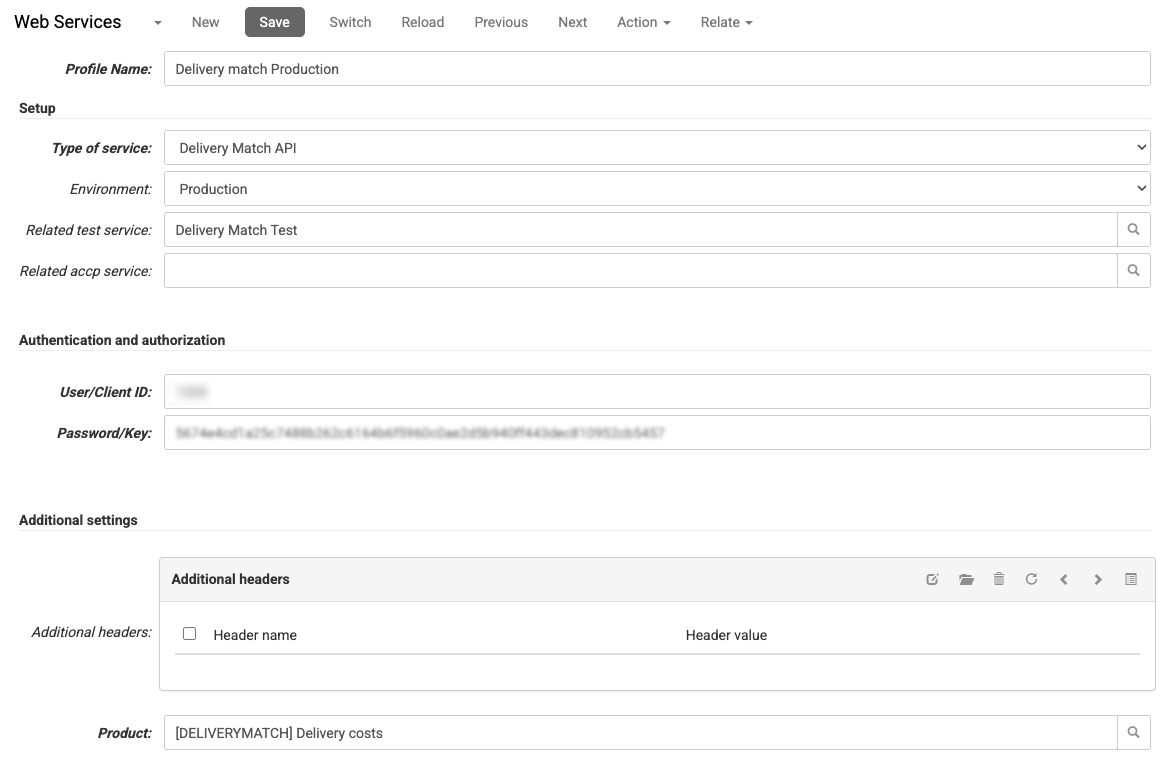
Configure the Web Service using your DeliveryMatch credentials. This connection allows the platform to communicate with the TMS.
- In the CloudSuite App, go to Other settings > Web Services.
- Click New.
- Next to Type of Service select Delivery Match API.
- In the User/Client ID field, enter the user name provided by DeliveryMatch.
- In the Password/Key field, enter the authentication key provided by DeliveryMatch.
- Select your shipping Service Product to link it to the shipping line item.
- The system adds this product as the shipping line in the order.
- The Product Name is set when creating the Carrier (Step 2).
Step 2. Configure carriers
Each carrier that is active in your DeliveryMatch backend must also exist in the CloudSuite platform.
- When offering "Drop-off points" carrier configuration is required.
- For "Home delivery" a carrier is not required, but can be used to override the Product name in the order, email or checkout.
DeliveryMatch returns a carrier value in the API response (for example: "carrier": "DPD").
The platform matches this with the field Carrier Code to find the matching carrier, so the field Code Carrier should be unique.
- In the CloudSuite App go to Order Management > Configuration > Carriers.
- Click New
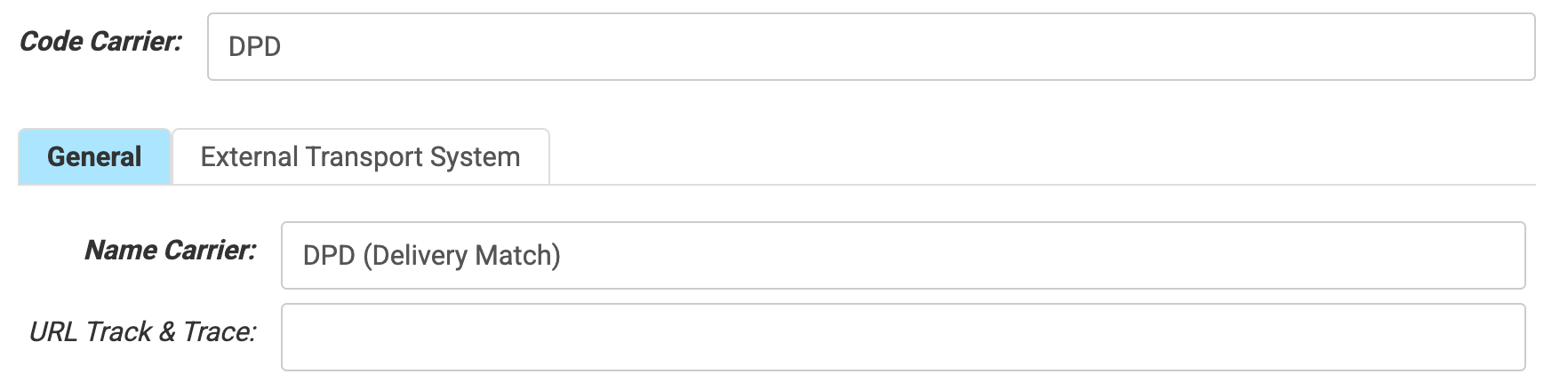
- Enter a Code Carrier as returned by DeliveryMatch.
Tab: General Tab
- Enter an internal Name Carrier e.g. DPD (DeliveryMatch).
- URL Track & Trace can be left empty. DeliveryMatch provides tracking information.
Tab: External Transport System
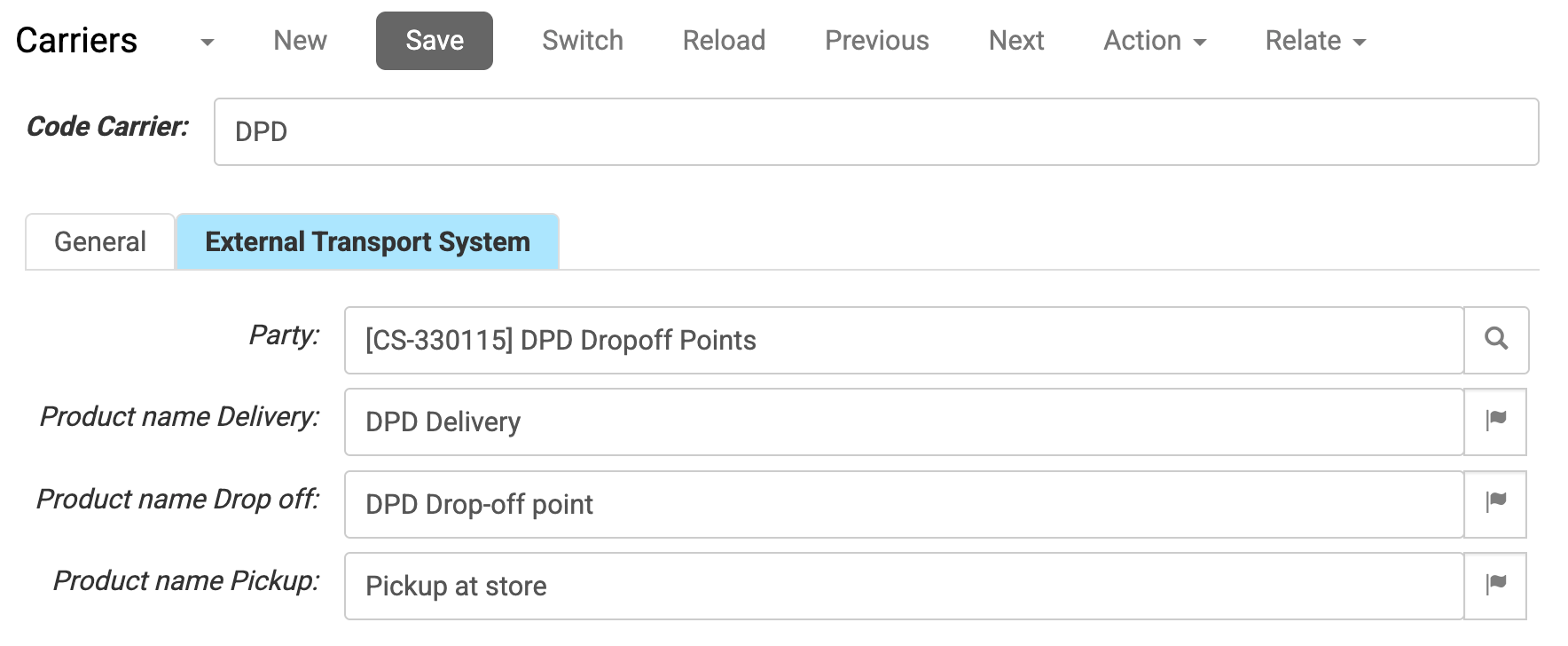
- Select the Party for this Code Carrier.
- The system uses this to store delivery or drop-off address data.
The following fields override the description of the shipping costs in the checkout, emails, and sales order.
- Product name Delivery - used for home delivery
- Product name Drop off - used for delivery to a drop-off point
- Product name Pickup - used for pickup in store
You can translate these values per language.
Confirm with DeliveryMatch which Carrier code is used for each country and delivery type (for example DPD Netherlands vs Germany) before configuring carriers.
Step 3: Enable the DeliveryMatch feature for the shop
Link the web service to your shop and define how the delivery options appear for the customers.
- In the CloudSuite App, go to Stores > Shops.
- Double click on a Shop name to see its details.
- Go to the tab Order Settings and then the tab General.
- In Webservice for Carrier delivery Options, select the DeliveryMatch profile you created in Step 1.
- Click OK.
- Set the preferred Carrier Sort mode to determine the default delivery option (Dropoff or Delivery) by selecting the preferred order.
- If no sort mode is set it will by default show Delivery first in the checkout component.
Step 4: Checkout Configuration
Make sure the checkout contains a Shipping step.
Contact CloudSuite Support to ensure that the checkout components are correctly configured to display the DeliveryMatch component.
Changing the checkout configuration without the required knowledge may result in errors and can disrupt the checkout flow.
  "step-2": {
            "actions": [
                "shipping"
            ],
            "name": {
                "default": "Delivery method",
                "de_DE": "Liefermethode",
                "es_ES": "Método de entrega",
                "fr_FR": "Moyen de livraison",
                "it_IT": "Metodo di consegna",
                "nl_NL": "Verzending",
                "pt_PT": "Método de entrega"
            }
        },
Restrictions on using DeliveryMatch
In some cases, the use of DeliveryMatch may not be possible or may lack certain standard features due to your shop's configuration.