Order Templates
Order templates are standardized forms to simplify the process of placing orders for both you and your customers. They contain predefined fields for essential information such as customer details, product specifications, payment methods, and order summaries.
To work with order templates, in the CloudSuite App go to Order Management > Order Templates > Templates. An overview appears, listing all order templates that have already been defined. Double-click an existing template to open its details or click New to create a new one.
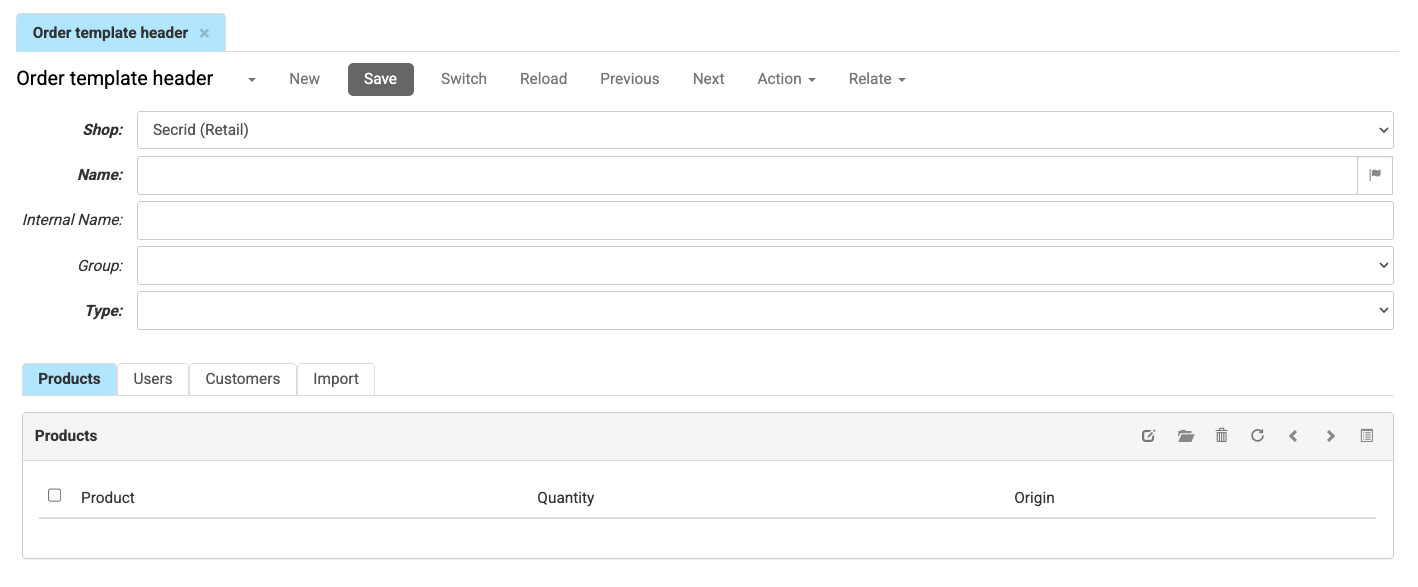
-
Choose the Shop in which the template can be used.
-
Enter the Name of the template. This will be visible to shop visitors, and can be translated.
-
Optionally, enter an Internal Name for internal reference.
Note: This name is only visible in the CloudSuite App and is not shown to shop visitors. -
Optionally, select the Group that the template belongs to.Groups help organize templates and can be configured to allow users to add their own templates.
-
Choose the Type of the template. This determines who can create and maintain it, and cannot be changed after the template has been saved.
- Choose Customer Template (default) if the template is to be created and maintained by the customer's Application Manager using the API
- Choose Editable Customer Template if the template is to be created by the customer's Application Manager and maintained by the end users of a specific customer.
- Choose Shop Template if the template is to be created and maintained by the customer's Application Manager
- Choose User Template if the template is to be created and maintained by the customer's end users
-
Click Save
-
After Savging the Order Template, the checkbox option Favourite appears. When checked, the end user cannot remove the order template. This option is only available for User Template, Customer Template, and Editable Customer Template types.
Products
This tab lists the products that are included in the order template. Click on the Edit icon to open the Order Template Product screen.

- The General tab lets you select a Product and set the default Quantity.
- Use the Replace Product tab to replace a different product that already belongs to the order template by the current one. The new product will replace the old one and a message can be shown to the customer in the order template.
Users
This tab is only visible when the Type is set to User Template. It lists the webshop users who have access to this template. For each user, you can specify:
- Webshop User: The user who has access to the template.
- Owner: If checked, this user is the owner of the template and has full control over it.
- Allow Changes: If checked, this user can modify the template. This option is only visible if Owner is NOT checked.
Customers
This tab is only relevant when the Type is set to Customer Template or Editable Customer Template and then shows the customers (parties) who have access to this template.
Add the customers who should be able to use this order template. For Editable Customer Template, note that defining multiple customers will trigger a warning, as this type is intended for templates that can be edited by the end-users of a single customer.