Managing Users in the CloudSuite Admin
User management is restricted to existing users with Admin rights within the CloudSuite Admin environment.
Accessing the User Management Module
To access the module where you can add, edit, or remove users:
- Click on your Name located in the bottom-left corner of the CloudSuite Admin sidebar.
- In the menu that appears, click the User Management option.
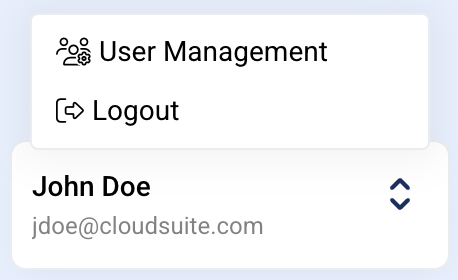
The User Management option is only visible to users with Admin rights. If this option is not present, please contact your internal administrator or the CloudSuite Support department.
Adding a New User
To invite a new user to the platform:
- From the User Management screen, click the Add User button in the top-right corner.
- A slide-in form will open. Complete all required fields for the new user.
- Click the Save & Activate User button.
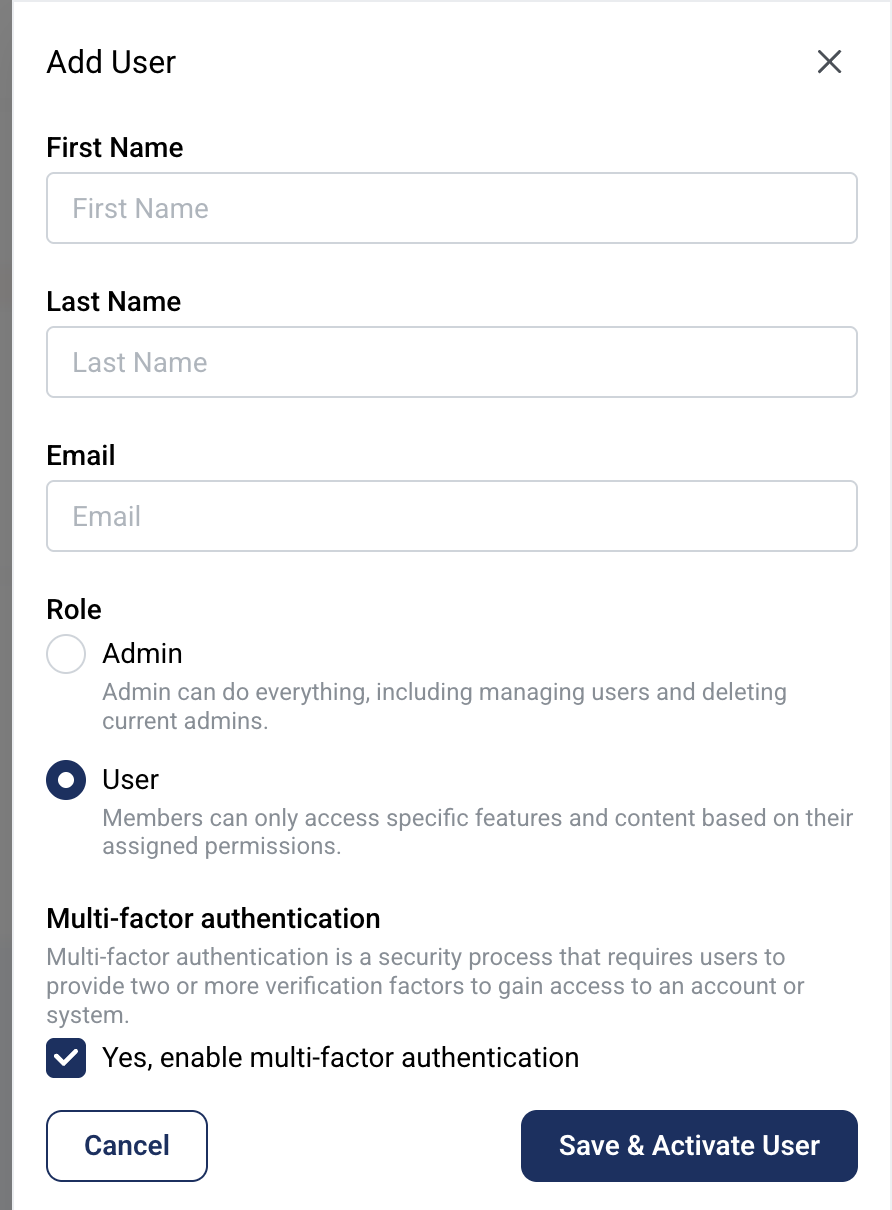
This action creates the user account and sends an activation email with instructions to the email address entered in the form.
Account Activation
Once the administrator has created the account, the new user must activate it:
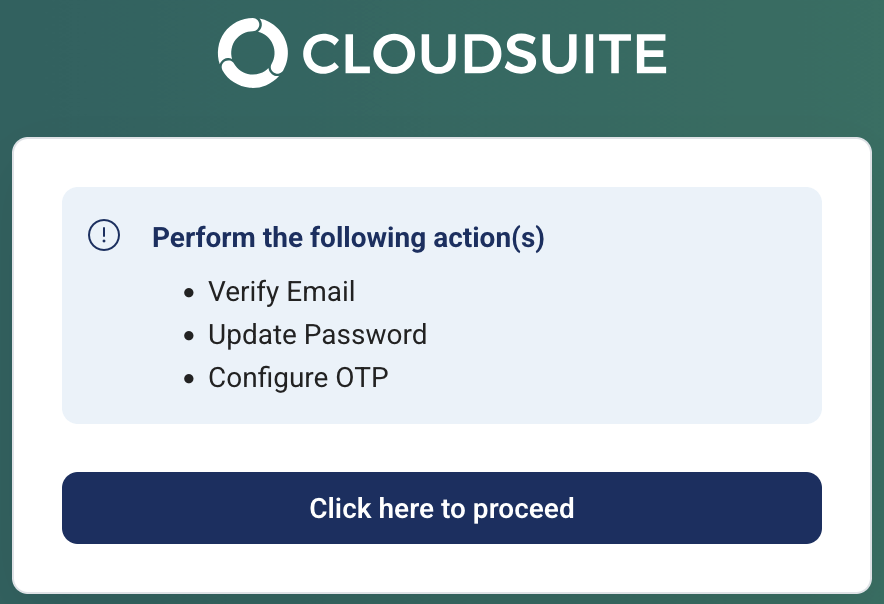
- The user receives an email and clicks the activation link provided.
- The user is directed to a screen to complete the activation and set their initial password.
- After successful activation, the user can log in to the CloudSuite Admin using their new account.
Multi-Factor Authentication (MFA)
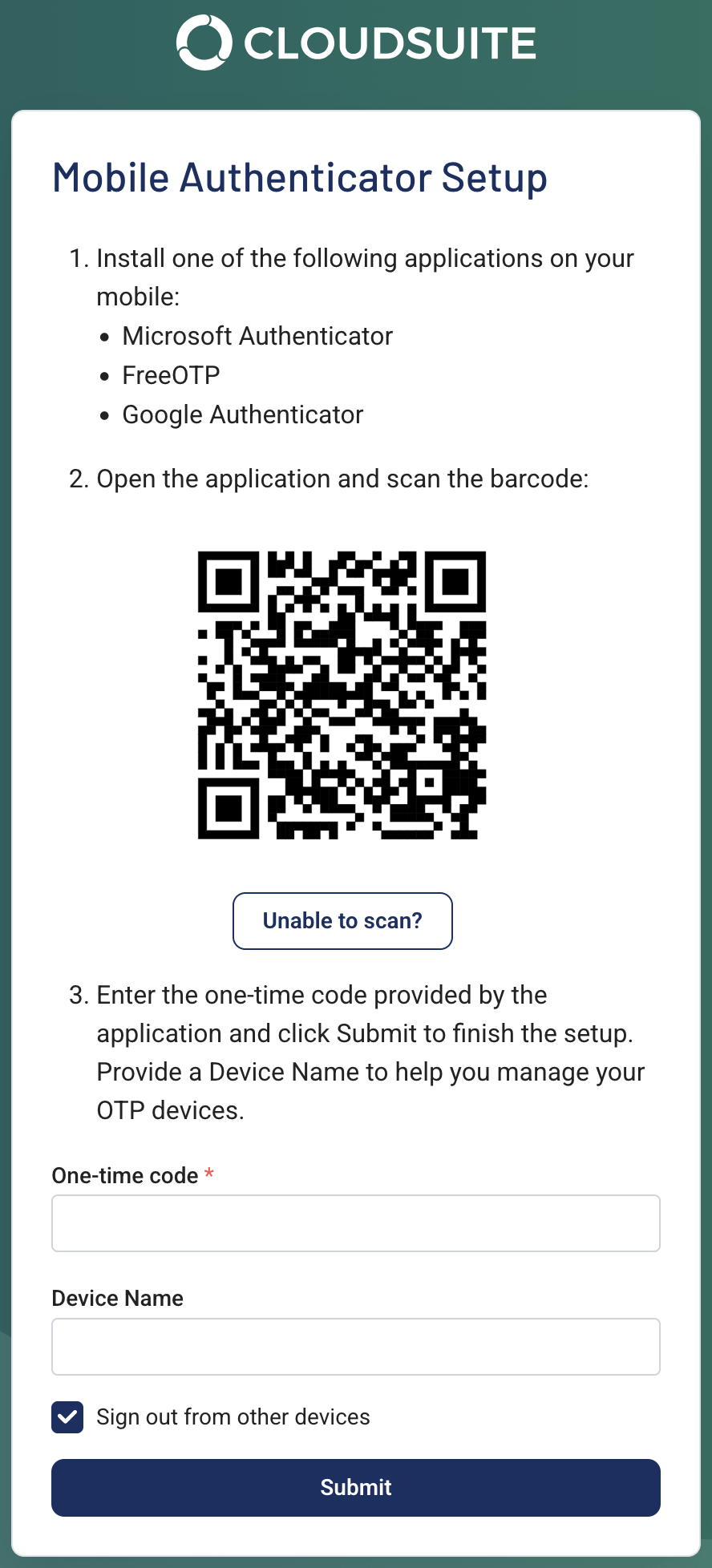
When creating or editing a user, the option to enable multi-factor authentication (MFA) is available. By default, this option is enabled because it provides a crucial layer of security. We currently only support MFA through an authenticator app.
We strongly recommend keeping the multi-factor authentication option always enabled as an added layer of security for all accounts.
If MFA is enabled for a user:
- The user receives a separate email instructing them on how to set up MFA.
- Following these instructions will guide them through the necessary steps.