Using Template Products as a Basis for Product Variants
You can use template products to set a basis for new products. Later, you can then enhance each product at the SKU (that is, unique product) level. Template products greatly simplify the management of product variants.
This feature is available only upon request. If you are interested in using this feature, please contact your consultant or Customer Support.
Creating a Product Variant
- In the CloudSuite App, go to PIM > Product Variants > Product variants and click New to create a new product variant.
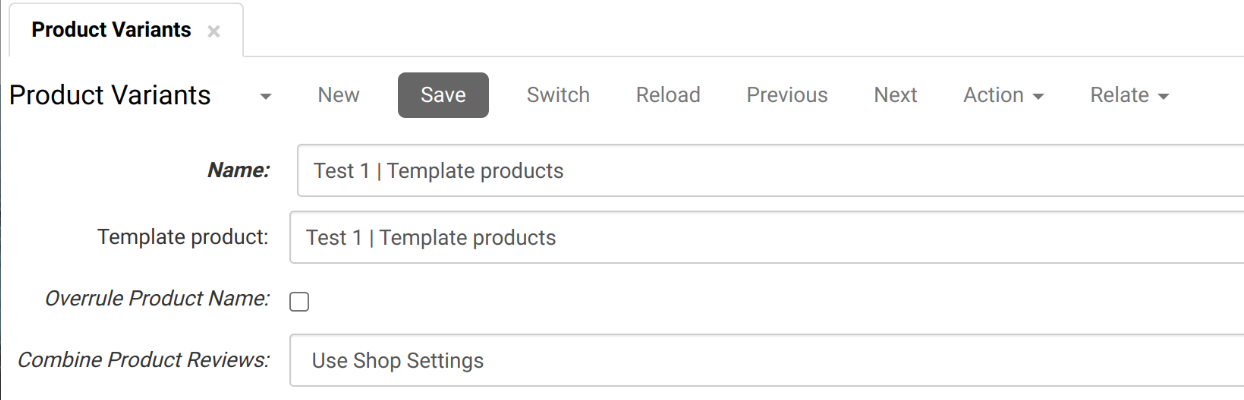
- Enter a Name for the variant and click Save. This automatically generates a template product.
Adding Products (SKUs) to the Product Variant
Using the template product, we now fill products (SKUs) with content.
- In the CloudSuite App, go to PIM > Product Variants > Product variants and open the template product.
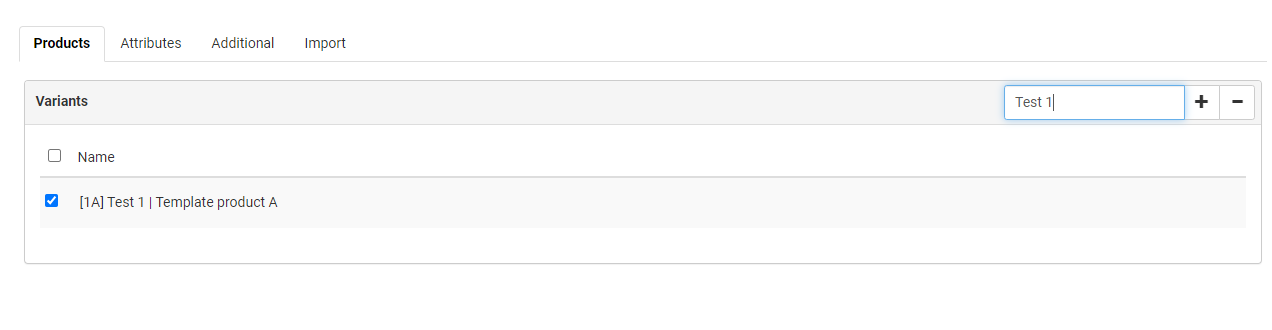
- Go to the Products tab.
- In the Variants section, select the related Template Product from the available choices.
- On the Product level, go to the tab Products. Under Variants, select the related Template Product.
- Click Save to confirm and save the changes to the product.
- You can now find the product SKU under the Template Product that you selected. This indicates that the Product is linked to the Template Product.
How to Organize the Template Product
Within the Template Product, you will group together all content related to the SKUs (Stock Keeping Unit - a unique product) in the Product Variant.
Here's what you can add:
- Brand: Assign the specific brand.
- Generic Description: Provide a general description for all products
- Attributes: Include any shared attributes.
Once you have saved the Template Product, you will receive a notification that all products (SKUs) in the Product Variant will be updated. This means that the SKUs will adopt all the content entered in the Template Product.
Note that this is a database update and therefore it cannot be undone!
Example
Let's say you decide to modify the Description in a specific Product (SKU). Later on, you decide to change the Brand in the Template Product and save those changes to the Template Product. If there is a generic Description in the Template Product, the Description field of the underlying Products (SKUs) will also be replaced by the Description in the Template Product. This goes for all information added to the Template Product.
Here's why:
When you save the changes in the Template Product, it serves as the master template for all related products. This means any alterations made in the Template Product will be inherited by the individual Product (SKU) level.
So, when you changed the Brand in the Template Product and saved it, this action triggered a cascading update. Consequently, the Description in the Product (SKU) also gets replaced by the Description in the Template Product. This ensures consistency and uniformity across all products within the Product Variant. However overwrites specific changes done on Product level.
Ensuring Unique Content for Each Product (SKU)
If you intend to have distinct content for each individual Product (SKU), it is crucial to follow this guideline:
When saving, leave that specific content field empty in the Template Product.
That way the field of underlying products is ignored and it will not overwrite any existing data.
Using the Same Attributes with Different Values
If you want to apply the same Attributes to multiple products (SKUs) but with distinct values, follow these steps:
- Add the Attribute to the Template Product to include it as a field of the Template Product.
- Leave List Value and Value Empty in the Template Product for that attribute.
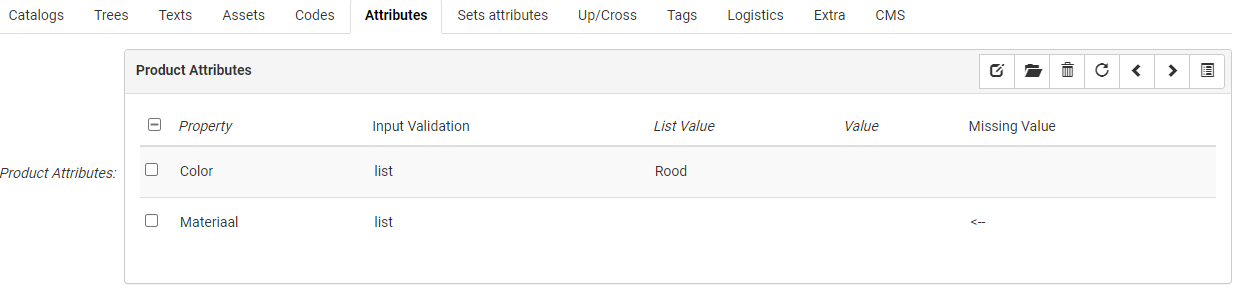
- Watch for the Missing Value Indicator. When you view the Product (SKU), you will notice an arrow in the "Missing Value" column. This arrow indicates that you need to fill in the Attribute at the Product (SKU) level with the specific values required for that product.
By following these steps, you can efficiently use the same Attribute across different products (SKUs) while customizing the values for each product as needed.