Create a Payment Method
You can add a new payment method to your webshop - for example iDEAL, a credit card, or Klarna — to make it available at checkout.
Before You Start
- Make sure you have an active account with the payment service provider.
- Make sure the payment service base configuration is fully configured in Payment Services > Base Configurations, including access tokens, webhooks and other provider-specific settings.
Base configurations are typically set up during onboarding. Changing these settings may affect existing payments. Only specialized users should change them.
Available Payment Methods per Provider
Each payment service supports a specific set of payment methods. The available payment methods and their required Code values are defined by the payment provider.
To add a payment method for a specific provider, use the payment method codes provided by that provider.
Step 1- Create a Payment Method
- Go to Stores > Payment Services > Payment Methods
- Click New.
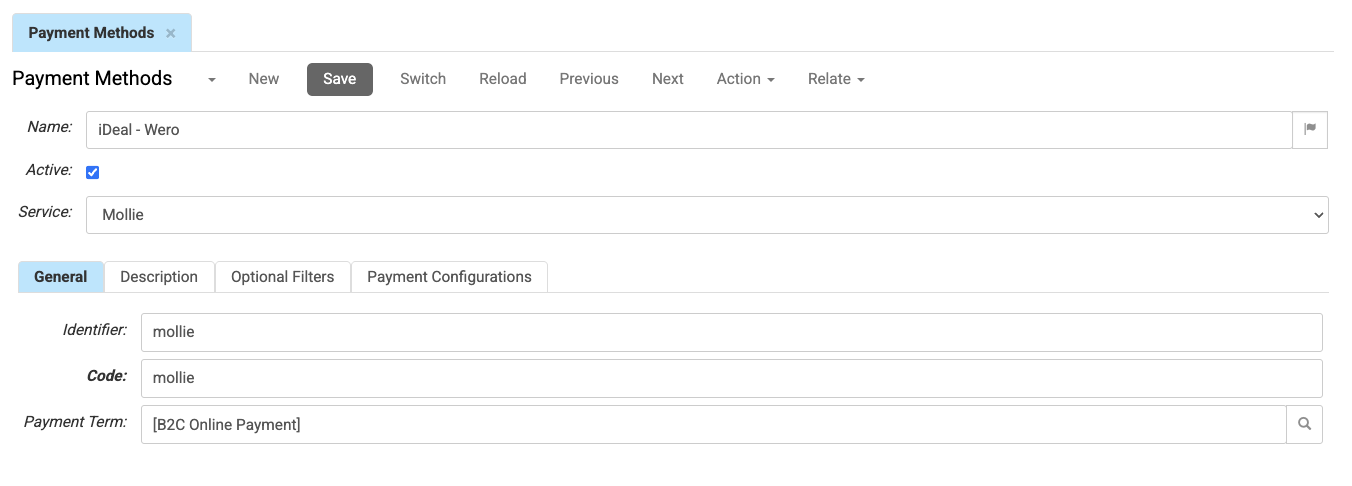
- Configure the payment method fields.
- At a minimum, configure the following:
- Name: the name shown at checkout
- Service: the payment service for this payment method.
- Code: the payment method code provided by your payment service
- At a minimum, configure the following:
- Optionally, configure additional fields such as Description, Minimum amount and Maximum amount, Visibility conditions, and Allowed Countries and Allowed Payment Terms.
- Save the payment method.
Step 2 – Link to Payment Configurations
- After saving the payment method, open the Payment Configurations tab.
- Link one or more Payment Configurations to the payment method.
Payment configurations are defined per shop and determine which payment methods and payment services are used for that shop.
You can also manage which payment methods are linked to a payment configuration from the Payment Configuration screen itself.
Open Stores → Payment Services → Payment Configurations, select a configuration, and use the Methods tab to add or remove payment methods. This is often faster when you configure multiple payment methods for a shop.
Step 3 – Verify the Payment Method
- Go to a webshop that uses the selected payment configuration.
- Add a product to the basket and proceed to checkout.
- Check that the new payment method appears.
If the payment method does not appear, check:
- whether it is linked to the correct payment configuration.
- whether optional filters such as Allowed Countries or Allowed Payment Terms apply.
The payment method is now active at checkout for every shop linked to the selected payment configuration.